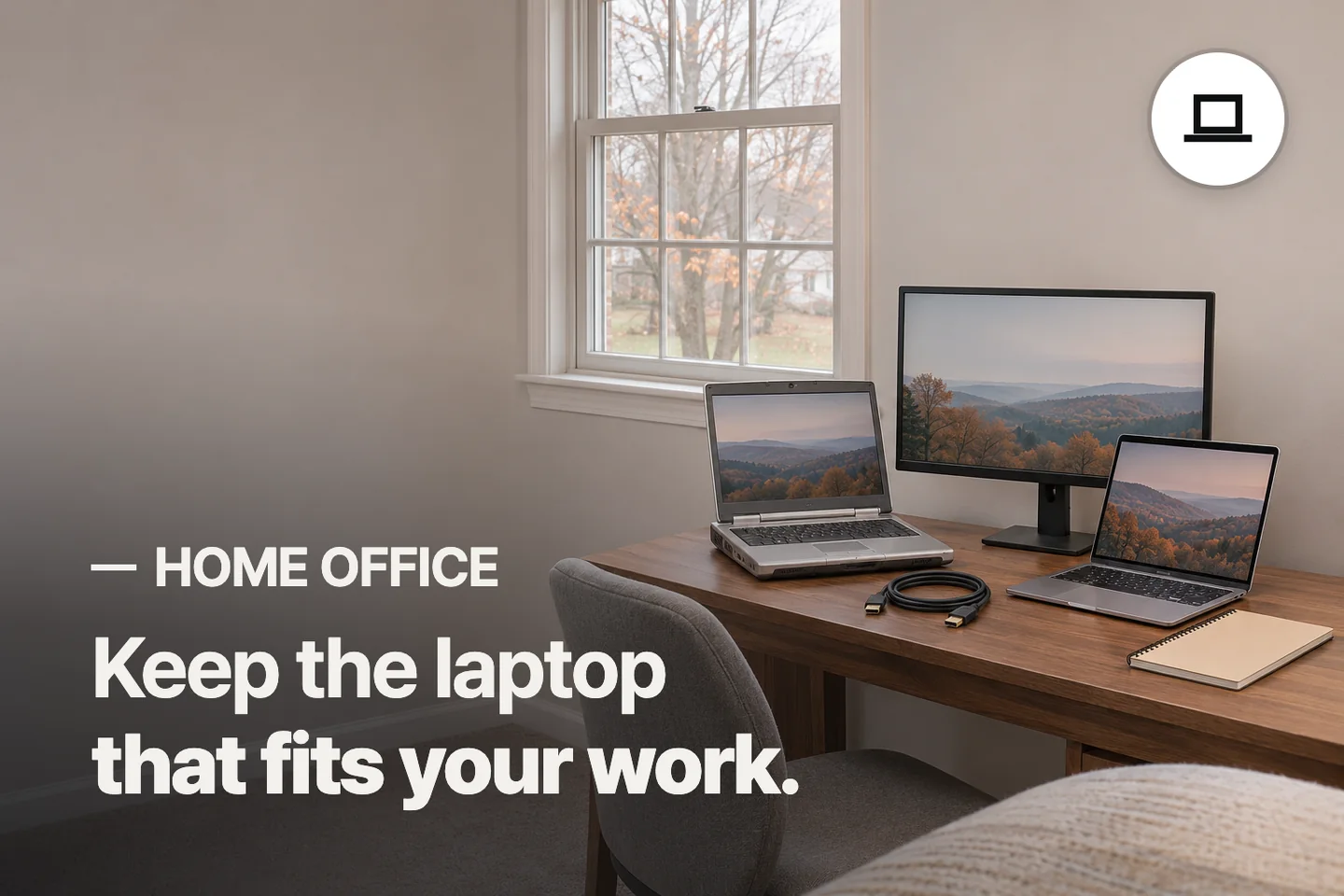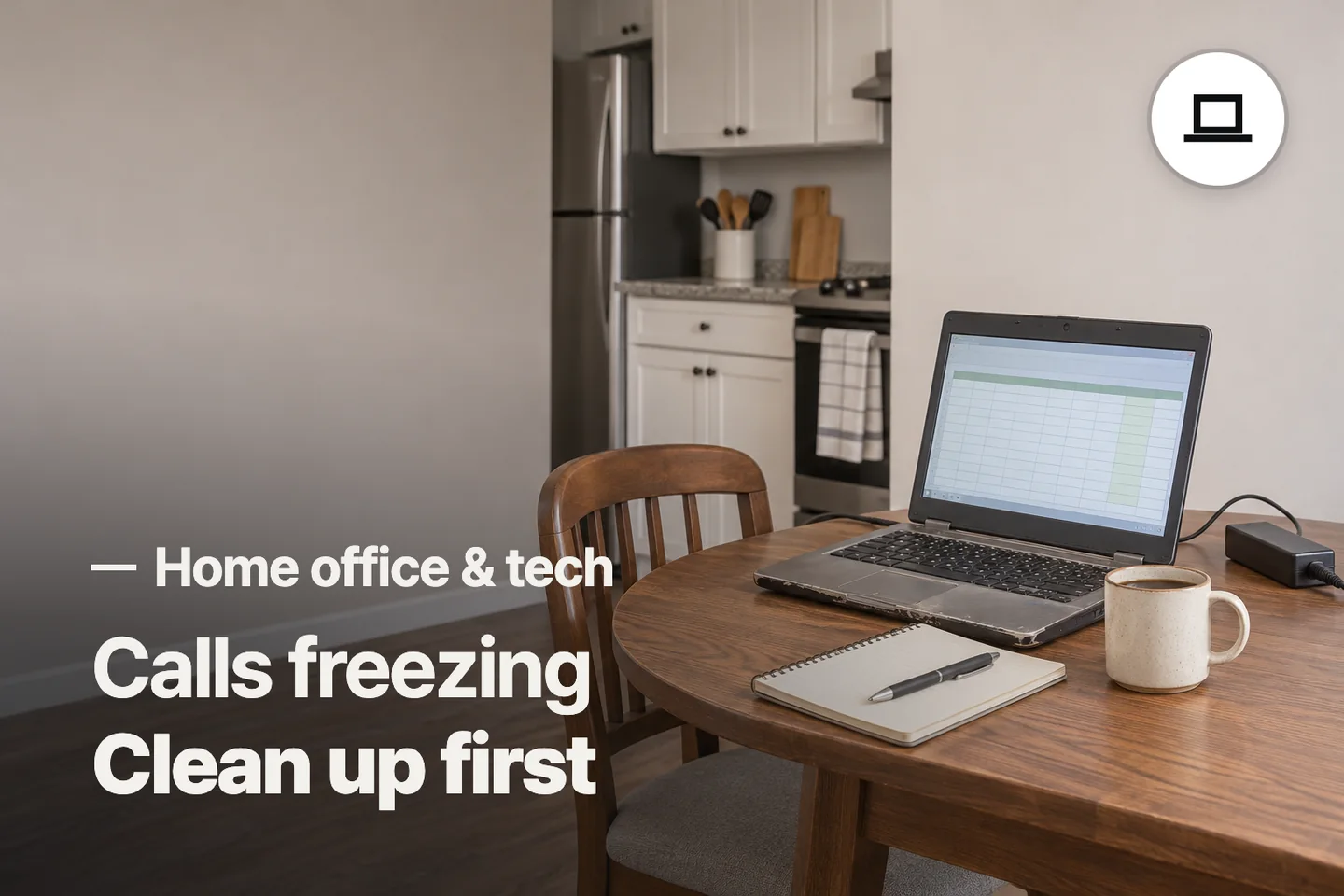
The fan gets louder just as someone asks you to share the spreadsheet. At an apartment kitchen table, with a work call in your headphones and dinner space disappearing under charging cables, a slow HP laptop can make a replacement feel overdue. But what needs replacing: the computer, the battery, or the way the call reaches that table?
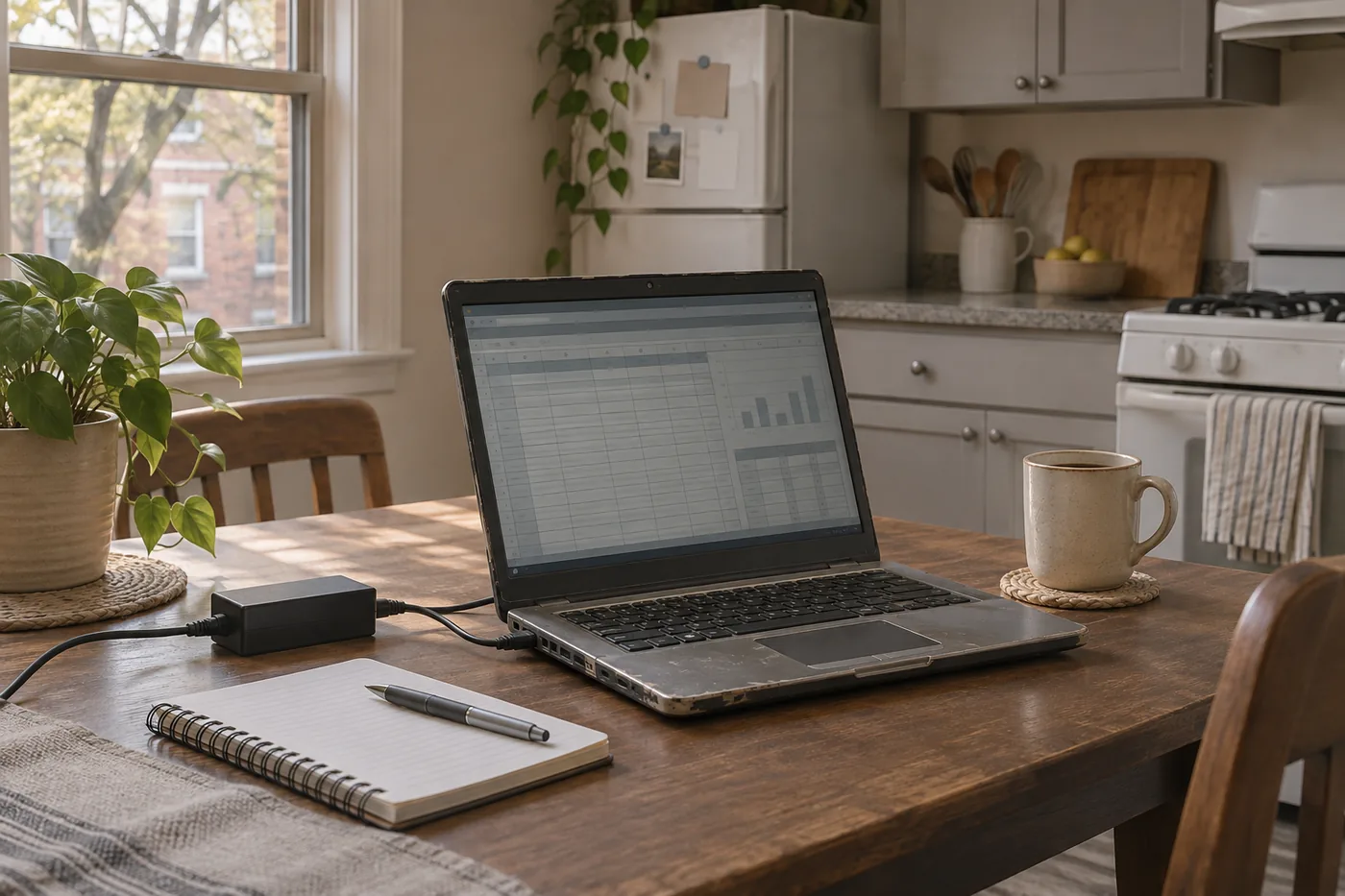 The same table needs to work for a conversation and a spreadsheet.
I'd keep the HP work laptop for now if reversible cleanup restores the actual work and its security support is in order. That means checking the interruption before shopping, not buying a quieter-looking machine to solve a problem you haven't located. No extra purchase is needed to begin.
How we chose
Reviewed Microsoft performance, battery, and lifecycle guidance and HP's hardware-diagnostics documentation. The troubleshooting order follows three checks: whether the symptom affects local work, whether reversible cleanup helps, and whether hardware condition and security support justify keeping the laptop.
Part 1Listen for the interruption, not just the fan
Start by saving your workbook and backing up important files. Then recreate the normal work setup: the workbook, your usual browser tabs, and the call with screen sharing. On a company-managed laptop, keep required software intact and involve IT before installing tools or changing work settings.
Microsoft's performance guidance recommends Task Manager for identifying resource-heavy activity. Open it with Ctrl + Shift + Esc and watch CPU, memory, and disk use while the hesitation happens. This gives you a symptom to follow, rather than a fan noise to worry about.
Does the workbook still hesitate after you leave the call? If it does, the computer needs attention; if editing stays smooth while voices break up, the connection deserves a separate check. Try the same call nearer the router or through an available wired connection before blaming the laptop.
Keep the workbook and sharing task consistent after each change. That way, a smoother conversation is a useful comparison, not just the relief of seeing an uncluttered desktop.
Part 2Give startup apps and storage some attention
Before cleanup, an app you rarely open may already be busy when you sign in. Microsoft's instructions put optional auto-launch controls in Task Manager under Startup apps. Disable entries you recognize and don't need immediately, but leave security software, your work VPN, and unfamiliar components alone.
This is stopping an automatic launch, not removing the program. So you can still open the app when you actually need it, without asking the laptop to prepare it for every meeting.
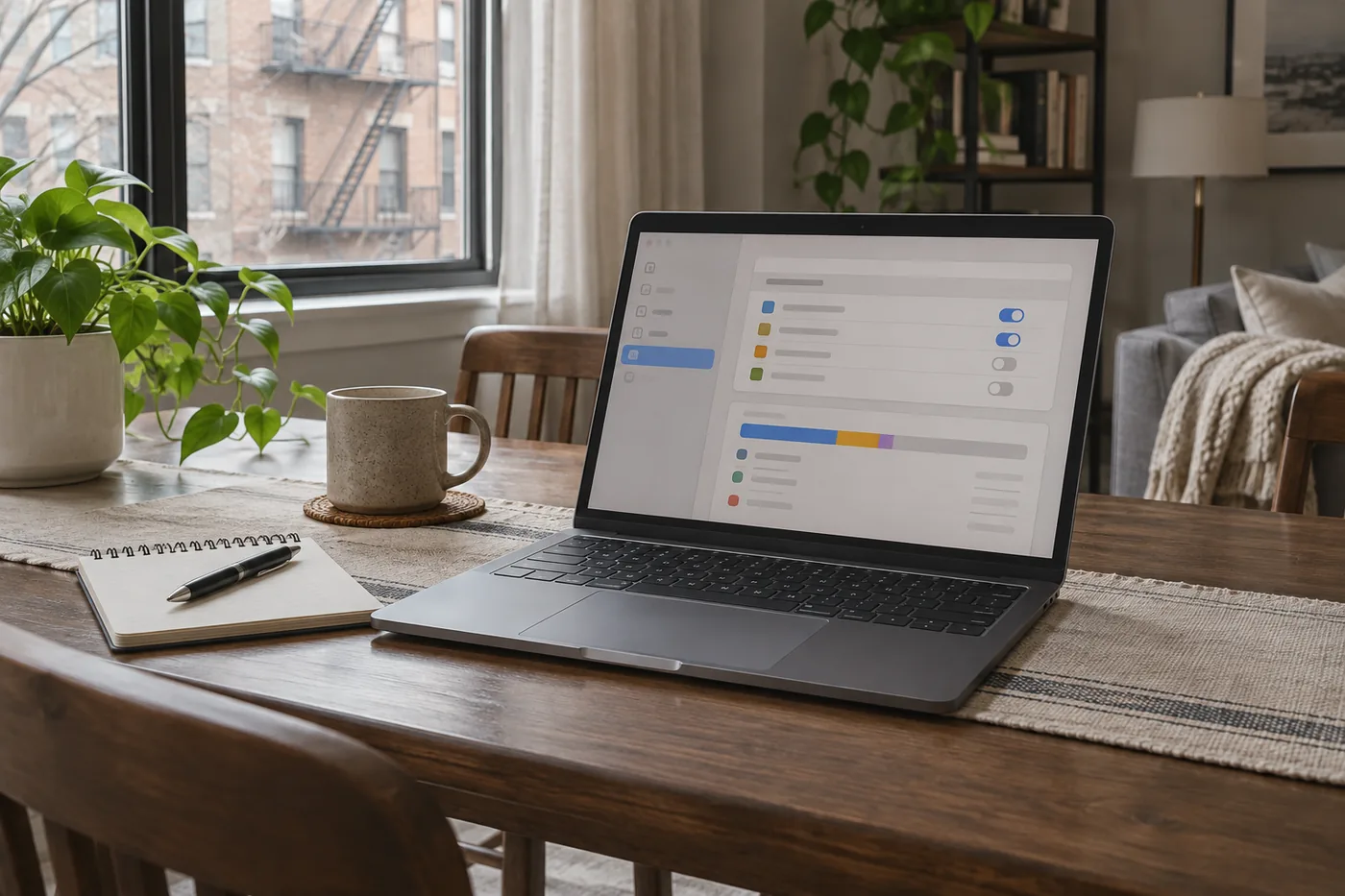 Keep a short note of what changed before repeating the call.
Next, open Settings > System > Storage. Microsoft identifies low disk space as a possible cause of reduced performance and points to Storage Sense and Temporary files for cleanup. Review what is selected before removing anything, especially downloads and work you haven't backed up.
That cleanup is about space you can safely recover, not reaching a magic percentage. The reviewed Microsoft guidance doesn't give a universal free-space threshold that guarantees smooth calls. If memory remains crowded instead, check the exact HP model's service documentation before assuming more memory can be installed.
Microsoft also recommends updates, a restart, and a Windows Security scan when investigating slow performance. Do that outside meeting time, then reopen only the apps the work needs. Adding a separate cleaner or optimizer now would make it harder to see which change helped.
Keep the work task familiar while you change the background around it.
Part 3Treat battery wear as a separate question
A laptop that won't last through an unplugged work session has a battery-runtime problem. But Microsoft's battery guidance describes declining capacity as less stored charge; that alone doesn't explain a workbook freezing. Short runtime is not a diagnosis of call lag.
For Windows 11, Microsoft documents powercfg /batteryreport from an administrator Command Prompt. The command displays the location of an HTML file; open that file and review the installed-battery details and capacity history. Those records help a service conversation, but the guidance doesn't supply a universal capacity cutoff for replacement.
Compare the work task with the appropriate HP adapter connected and in your usual unplugged setup. Keep track of the power mode too, because Microsoft says Best performance increases power use and can make the laptop warmer. More fan activity in that mode isn't the improvement you're trying to hear.
There is a stop point here. Microsoft says to stop using the device immediately if the battery expands beyond its enclosure, and to avoid pressing or puncturing it. A visibly swollen laptop needs service, not another comparison call.
 Separate the question of unplugged runtime from the question of responsive work.
Part 4Let HP's diagnostics inform the repair conversation
When the problem persists, HP PC Hardware Diagnostics gives the next conversation something firmer than “it sounds busy.” HP says its Windows tool supports Windows 10 and 11. Its UEFI tool runs outside the operating system, helping separate hardware faults from software-related trouble.
If the tool produces a 24-digit failure ID, save it for HP support. Then use the remaining symptom to decide what kind of help to request, rather than booking a repair for fan noise alone.
Swipe sideways to see the full table →
| What is still happening? | What to do next |
|---|---|
| Editing and screen sharing are responsive again | Keep the laptop and watch ordinary work for recurring interruptions. |
| Speech breaks up but local work stays responsive | Investigate the connection and call setup before replacing the machine. |
| Runtime is short but plugged-in work is comfortable | Request a battery-service quote for the exact model. |
| Diagnostics identify a fault or required work still stalls | Back up files and compare a documented repair with replacement. |
Part 5Keep a supported machine, not just a working one
A smoother call isn't the only condition for keeping the laptop. Microsoft lists October 14, 2025 as the end of ordinary Windows 10 Home and Pro support. So check Windows 11 eligibility or the applicable extended security-update arrangement with IT rather than assuming responsiveness means security updates are covered.
 The useful improvement is work that stays comfortable through the actual meeting.
If replacement is necessary, carry the unresolved problem into your shopping list: memory for the workbook and call together, storage for your files, and connections for the monitor you already own. Then compare exact configurations, not just an HP family name or an Amazon.com sale badge. This troubleshooting path doesn't select a retail model or claim a current discount.
For today, disable an optional startup app you recognize, restart, and repeat the same screen-sharing task. Then listen for the change that matters: a complete sentence from your colleague while the workbook keeps moving.
Method: Reviewed Microsoft's performance, battery, and lifecycle guidance alongside HP's hardware-diagnostics documentation. The checks prioritize isolating the symptom, making reversible changes, and confirming hardware and security-support status. Sources checked November 24, 2026; no retail prices or model-specific noise measurements are claimed.
In one sentence
Use the same call and workbook to separate a slow computer from a connection problem before spending on replacement.
Frequently asked questions
Why is my HP laptop slow during video calls?
Background apps, storage pressure, hardware limitations, and the connection can cause different interruptions. Compare local workbook editing with the call closed, then repeat the same sharing task while observing Task Manager. If local work stays responsive, investigate the connection before replacing the computer.
Does poor battery health mean I need a new laptop?
Not by itself. Microsoft describes declining battery capacity as less stored charge, so a responsive laptop with short runtime may need a model-specific battery-service assessment instead. Microsoft says to stop using a device immediately if its battery expands beyond the enclosure.
What does an HP hardware-diagnostics failure ID mean?
HP asks for the 24-digit failure ID generated by its diagnostics to begin the repair process. Save the code and contact support rather than treating additional software cleanup as a substitute for investigating the identified fault.
Can I keep a Windows 10 laptop after cleanup?
Only with an appropriate supported security-update arrangement and no unresolved hardware problem. Microsoft lists October 14, 2025 as the end of ordinary Windows 10 Home and Pro support. Confirm Windows 11 eligibility or applicable extended updates with your organization's IT team.
Sources
- Microsoft: Tips to improve PC performance in Windows · 2026-11-24
Windows 11 and Windows 10 guidance covers Task Manager, startup apps, Storage Sense, updates, security scans, and power-mode trade-offs. States October 14, 2025 as Windows 10 support end; no universal numeric free-space target is used.
- Microsoft: Caring for your battery in Windows · 2026-11-24
Documents the Windows 11 powercfg /batteryreport command and capacity history. Gives immediate stop-use instructions when a battery expands beyond the enclosure; no numeric replacement-capacity threshold is claimed.
- HP: PC Hardware Diagnostics · 2026-11-24
HP specifies Windows 10 and 11 support for its Windows diagnostic tool and a 24-digit failure ID for starting the repair process. Describes UEFI diagnostics running outside the operating system.
- Microsoft Lifecycle: Windows 10 Home and Pro · 2026-11-24
Gives October 14, 2025 as the Windows 10 Home and Pro end-of-support date. This is not presented as the end date for every extended-update or LTSC arrangement.