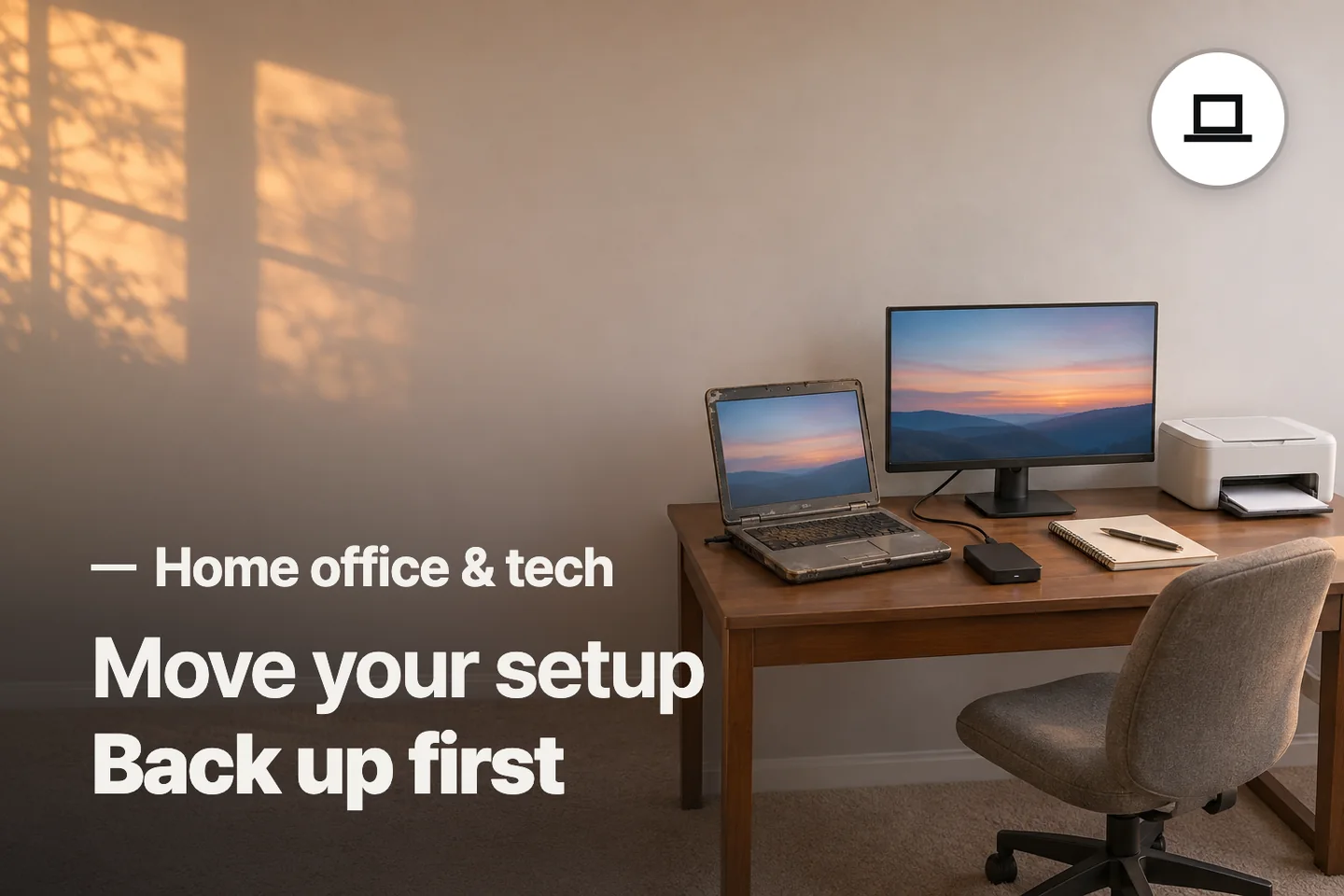
The old laptop's fan gets louder just as a colleague starts speaking. In a spare-bedroom office, a new MacBook Pro promises a quieter desk, but tomorrow's call still depends on the files, accounts, and printer attached to the old one. Keep that laptop intact until its replacement can handle an ordinary working day.
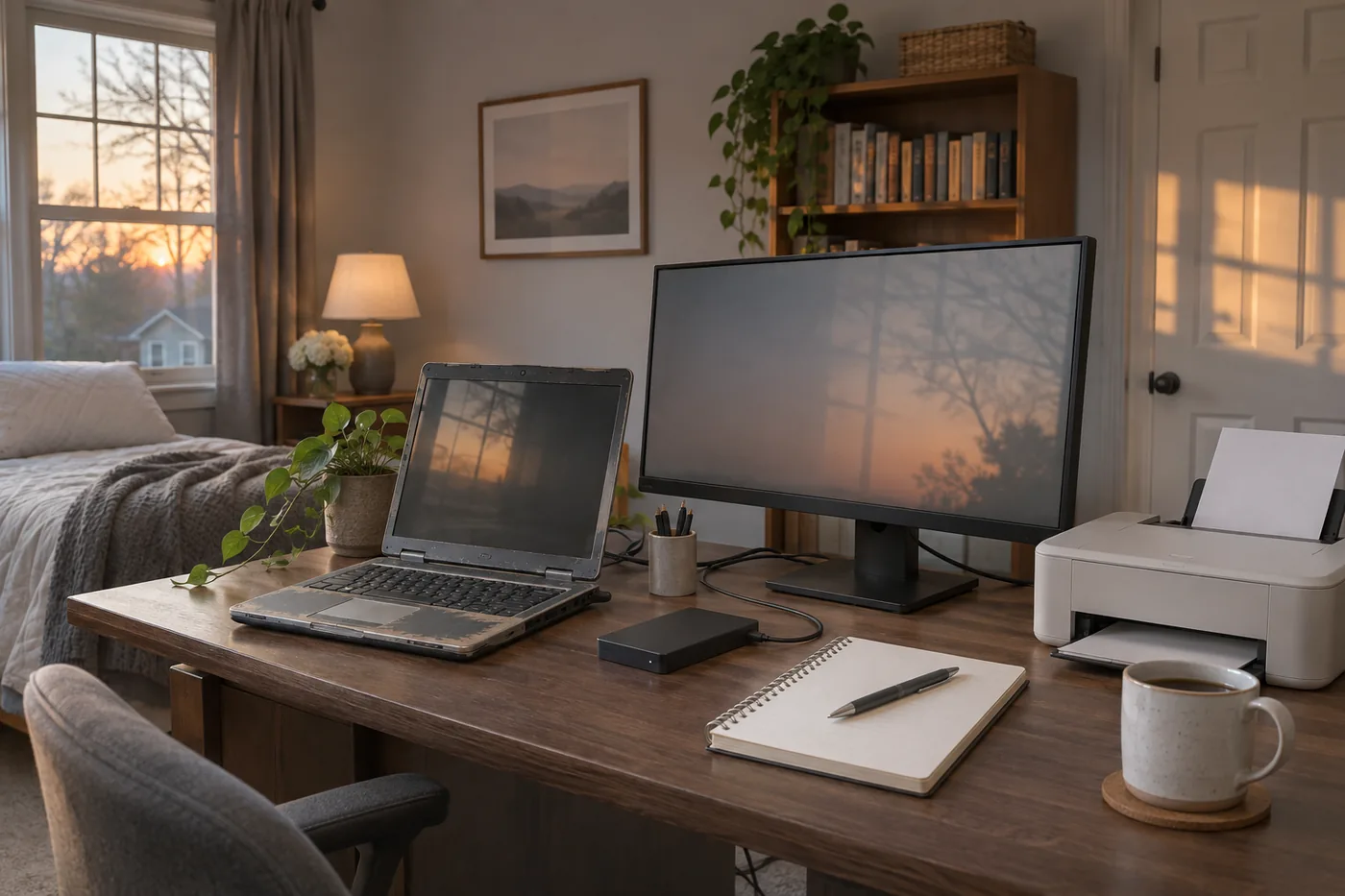 The move includes the things around the laptop, not just the folders on its screen.
I'd start with Apple's Migration Assistant, not a shopping list of transfer accessories. But copying files is only the middle of the job: make an independent backup first, then check your work on the new Mac before erasing anything.
How we chose
I reviewed Apple's backup, migration, printer, and reset guidance alongside Google's browser sign-in and Microsoft's PC reset instructions. The three checks were recoverable files, a compatible transfer route, and working accounts and peripherals before erasure.
Part 1Start with a backup you can actually open
A familiar cloud folder can hide an awkward surprise: the document may still need downloading. So begin on the old laptop, save open work, and check Desktop, Documents, Downloads, and any folders your work apps keep elsewhere. Include separate work and personal accounts rather than assuming they contain the same files.
For a Mac, Apple's Time Machine guidance recommends a backup drive with at least twice the Mac's storage capacity. That gives you a sizing rule before connecting a drive you already own; if setup asks to erase that drive, protect its existing contents elsewhere before agreeing. Start a backup with Back Up Now and wait for it to finish.
For a Windows source, copy essential local folders to separate storage the new Mac can read, or follow your employer's backup process. Then open sample documents from that copy, including something recent and something difficult to replace. A folder name alone doesn't show that the current spreadsheet or project file survived.
Keep backup passwords somewhere accessible without the old laptop, and plug both computers into power. If either device belongs to work, ask IT about enrollment and migration restrictions before proceeding; Apple's preparation instructions are not permission to disable company security tools.
A useful backup is one you can retrieve files from, not merely a drive sitting beside the computer.
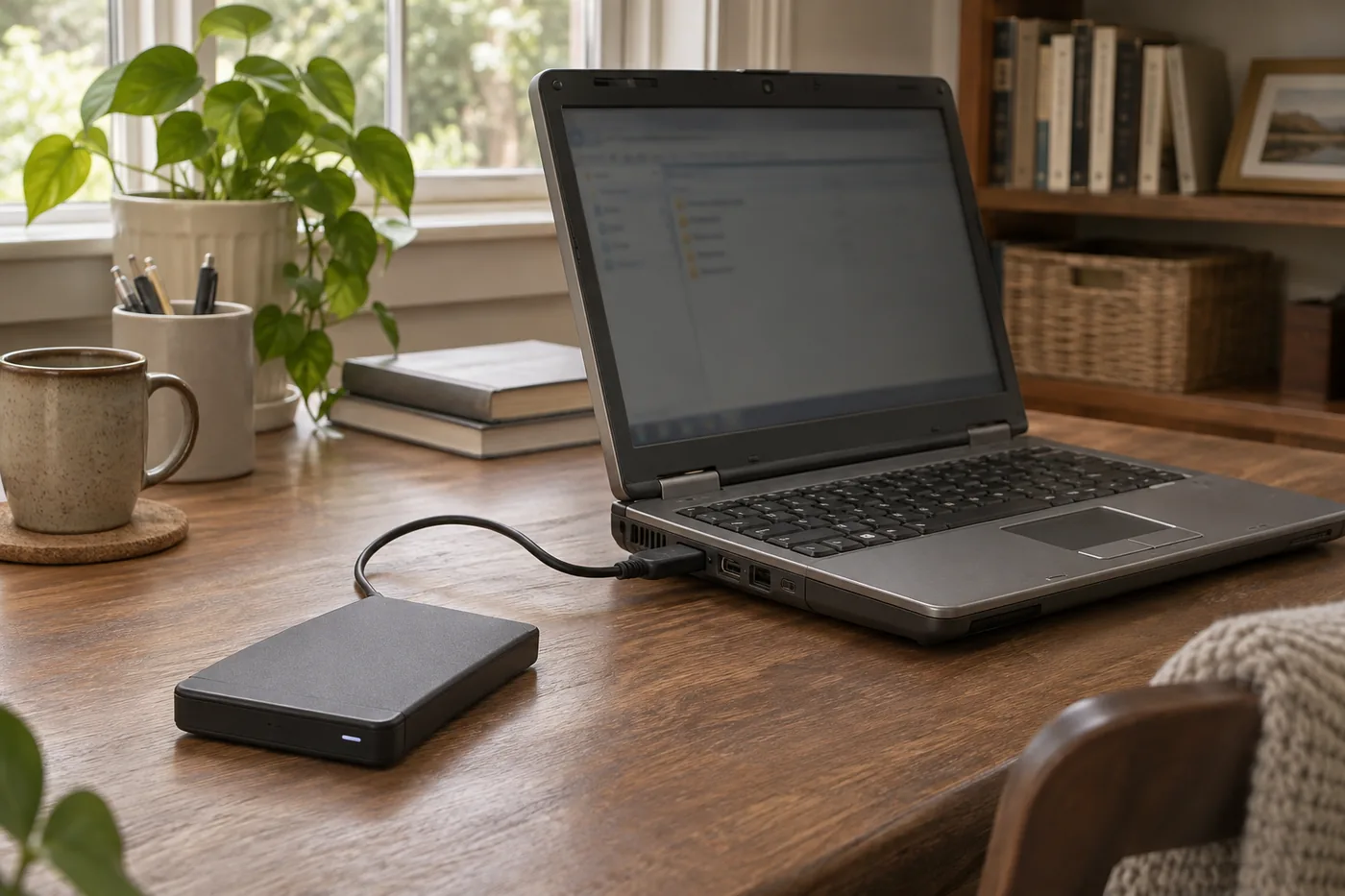 Check the saved work before starting the transfer.
Part 2Choose the transfer route for the old laptop
Apple says Migration Assistant copies information without removing it from the source computer. So you can move the work while keeping the old machine as your fallback. During a new Mac's initial setup, use the offered transfer option; if setup is already complete, open Migration Assistant on the Mac.
Swipe sideways to see the full table →
| Your old laptop | Route into the new Mac | What still needs attention |
|---|---|---|
| Mac | Transfer from a Mac, Time Machine backup, or startup disk | Review user accounts and the categories selected |
| Windows PC | Choose From a Windows PC and run Apple's matching assistant on the PC | Install Mac-compatible work apps separately |
For Windows, use the download linked from Apple's current PC migration guide and match it to both operating systems. That is more dependable than reusing an installer saved from a previous move. If the old laptop runs ChromeOS instead, the Windows assistant is not the route for it.
Follow the pairing prompts, then review what will be transferred before continuing. If an account name already exists on the new Mac, pause at Apple's replace-or-rename choice rather than clicking through; the choice affects which account you'll use afterward.
Apple cautions that large migrations can take hours and sometimes appear to stop moving. So allow breathing room around the next workday, and don't treat an unmoving progress bar alone as proof of failure. If migration does fail, leave the source unchanged and follow Apple's troubleshooting steps before trying again.
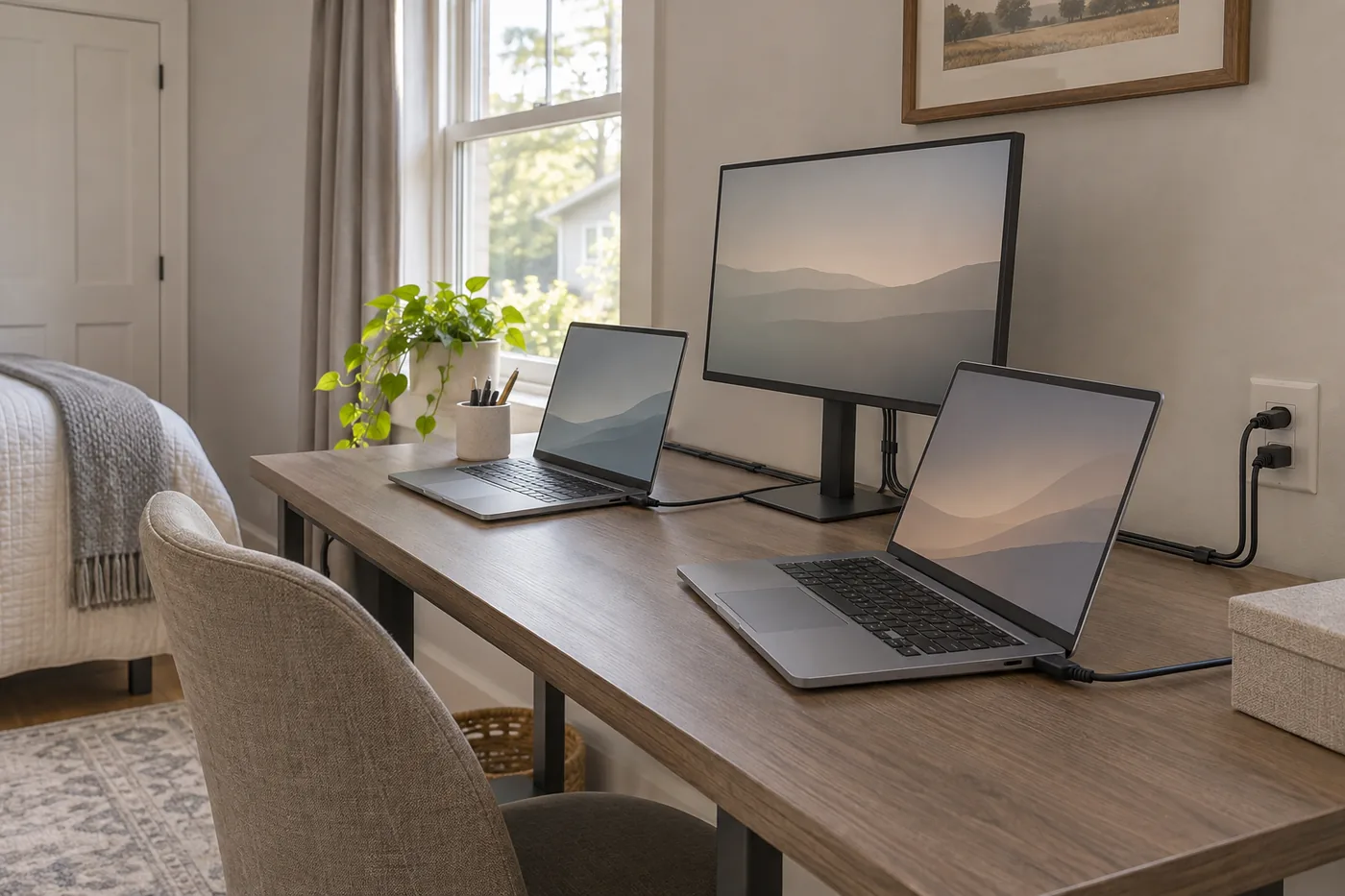 Leave the old laptop available while the transfer finishes.
Part 3Make the new desk ready for a real call
A copied browser bookmark can open the right website and still leave you staring at a sign-in screen. Google says signing into Chrome lets you retrieve information such as bookmarks and passwords saved with your Google Account. But Gmail sign-in and Chrome sign-in are separate choices, so check the browser profile rather than just the inbox.
Open your password manager, then sign into work email, calendar, storage, and the meeting service. That also gives you a chance to handle fresh authentication while your phone or security key is nearby. Avoid making an unencrypted password export simply to save a few sign-ins.
Next, open a current project in its actual work app, save a harmless change, and check the correct cloud account for that change. If you're moving from Windows, this is where installing compatible Mac apps and checking licenses matters. The presence of a document doesn't establish that you can edit it.
Now reconnect the dock, display, headset, and camera, and open the meeting app's preview. Can you hear the intended microphone rather than the laptop across the desk? A preview recording or permitted test call checks what the colleague actually hears, which a successful file transfer cannot establish.
For wireless AirPrint printing, Apple says the printer and Mac need the same Wi-Fi network. So open a document and try printing; if the printer isn't offered, add it through Printers & Scanners. For other models, check the printer maker's Mac software support rather than carrying over a Windows driver.
If the printer was shared through the old laptop, turn that laptop off briefly and try again from the Mac. This checks whether printing depends on the device you're retiring, before that dependency becomes a surprise.
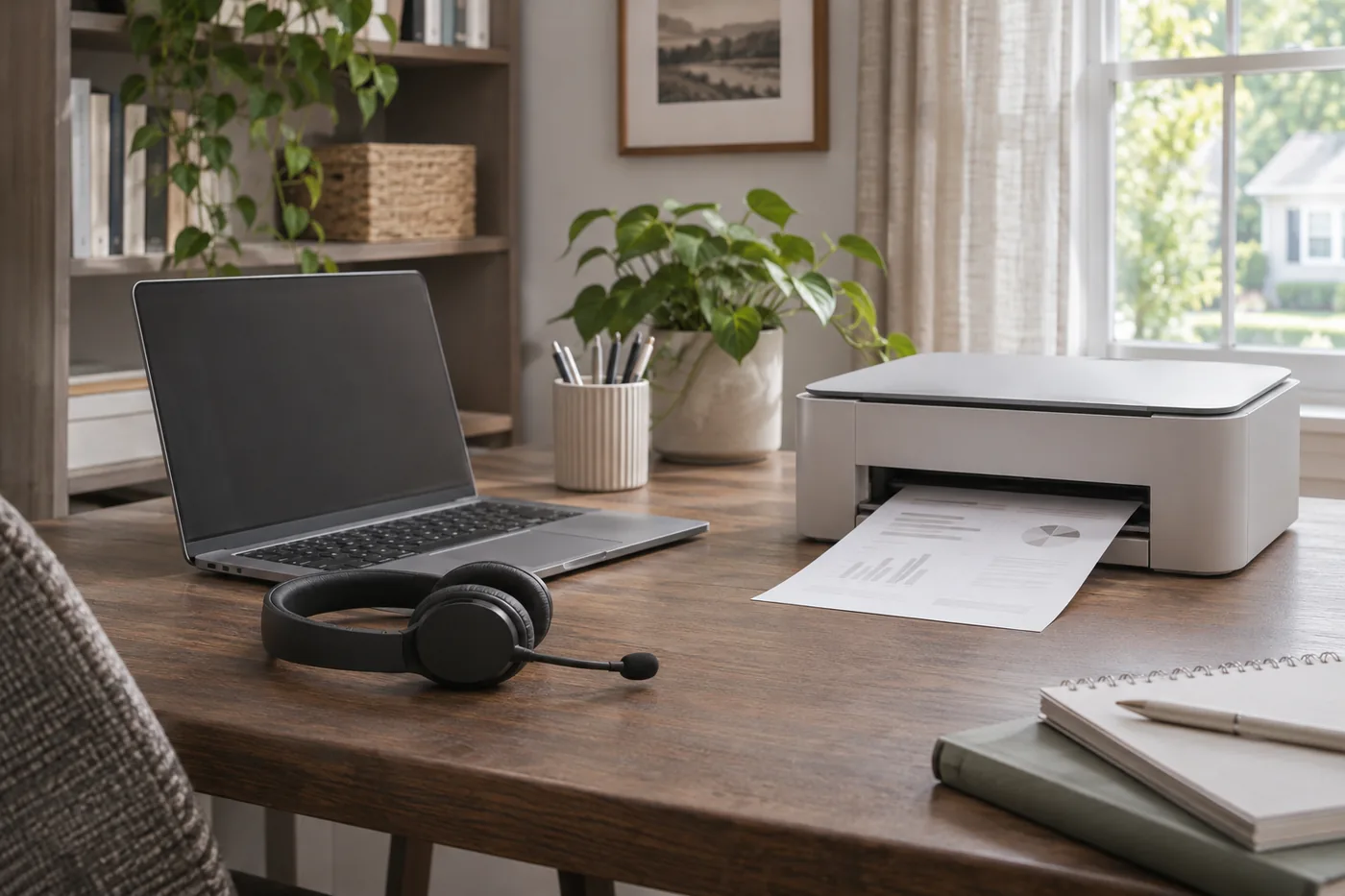 Check sound and a printed page, not just the appearance of the desktop.
Part 4Erase the old laptop only after the checks
Once files open, accounts authenticate, calls sound right, and printing works, the old laptop can stop being your emergency workstation. But keep the independent backup, and follow any employer return instructions before resetting company equipment. Deleting synchronized folders is not a substitute for resetting the computer and may affect copies elsewhere.
For an old Mac, Apple limits Erase All Content and Settings to macOS Monterey 12 or later on Apple silicon or a Mac with the Apple T2 Security Chip. On supported Macs using System Settings, the route is General, then Transfer or Reset; Monterey uses the System Preferences menu instead. If the feature isn't available, follow Apple's linked alternative instructions rather than guessing at an equivalent.
For an old Windows laptop leaving your possession, Microsoft describes Reset this PC with Remove everything and Clean data enabled. Before starting, have the BitLocker recovery key available if the device is encrypted. Microsoft also warns that consumer erasure does not meet government or industry standards, so workplace devices need their organization's process.
For today's quick tweak, bookmark the next meeting link and the project you're working on in the new browser. Then open both from those bookmarks, so tomorrow starts at the work rather than another search for it.
I checked Apple, Google, and Microsoft support instructions for backup, transfer compatibility, and getting the desk working again. Sources checked November 24, 2026; transfer duration depends on the files and connection.
In one sentence
Keep the old laptop until the new Mac can open your work, sign you in, handle a call, and print.
Frequently asked questions
Will Migration Assistant keep every website signed in?
Do not count on active website sessions carrying over. Google describes retrieving saved Chrome information after browser sign-in, but you should still open each essential service and complete any fresh authentication before retiring the old laptop.
Why won't the printer work after moving to a MacBook?
Apple's wireless AirPrint instructions require the Mac and printer to share a Wi-Fi network. Add a missing printer in Printers & Scanners, check the maker's Mac support for other models, and confirm that printing did not depend on sharing through the old laptop.
How long does a MacBook migration take?
Apple says large transfers can take hours and may appear to pause. There is no guaranteed completion time, so keep the old computer available and avoid scheduling the move immediately before a necessary call.
Does this guide cover moving to a new Windows laptop?
The transfer steps here are for a Mac destination, with either a Mac or Windows source. A Windows-to-Windows move needs its own transfer instructions; the Microsoft reset guidance here only concerns retiring the old Windows laptop after verifying the replacement.
Sources
- Apple: Back up your Mac with Time Machine · 2026-11-24
Recommends backup storage with at least twice the Mac's storage capacity. Also supports Back Up Now and the warning that backup setup can request erasure of the external drive.
- Apple: Transfer to a new Mac with Migration Assistant · 2026-11-24
No fixed duration is given: large transfers may take hours and appear to pause. Supports source preservation, transfer categories, initial setup, and account replacement or renaming.
- Apple: Transfer from PC to Mac · 2026-11-24
No installer-version number is reproduced in the article. The opened guide provides downloads matched to the source Windows and destination macOS versions, the From a Windows PC route, pairing steps, and failure guidance.
- Google: Sign in to Chrome · 2026-11-24
No numerical claim used. Confirms availability of saved bookmarks and passwords with Chrome sign-in and that signing into Chrome when using Gmail is optional.
- Apple: Add and manage printers on Mac · 2026-11-24
No numerical claim used. Supplies the same-Wi-Fi requirement for wireless AirPrint, Printers & Scanners setup, and printer-manufacturer software guidance.
- Apple: Erase your Mac and reset it to factory settings · 2026-11-24
Confirms macOS Monterey 12 or later and Apple silicon or an Apple T2 Security Chip for Erase All Content and Settings. Distinguishes the System Settings route from Monterey's System Preferences menu and links alternatives.
- Microsoft: Reset your PC · 2026-11-24
No numerical claim used. Supports Remove everything with Clean data for selling or donating, the BitLocker recovery-key precaution, and the limitation that consumer erasure does not meet government or industry standards.