The fan swells just as you unmute, filling the quiet spare bedroom with a sound that belongs closer to a vacuum than a conversation. Now your gaming laptop has become the loudest participant in a work call, and turning up the speakers won't change what's happening beneath the keyboard.
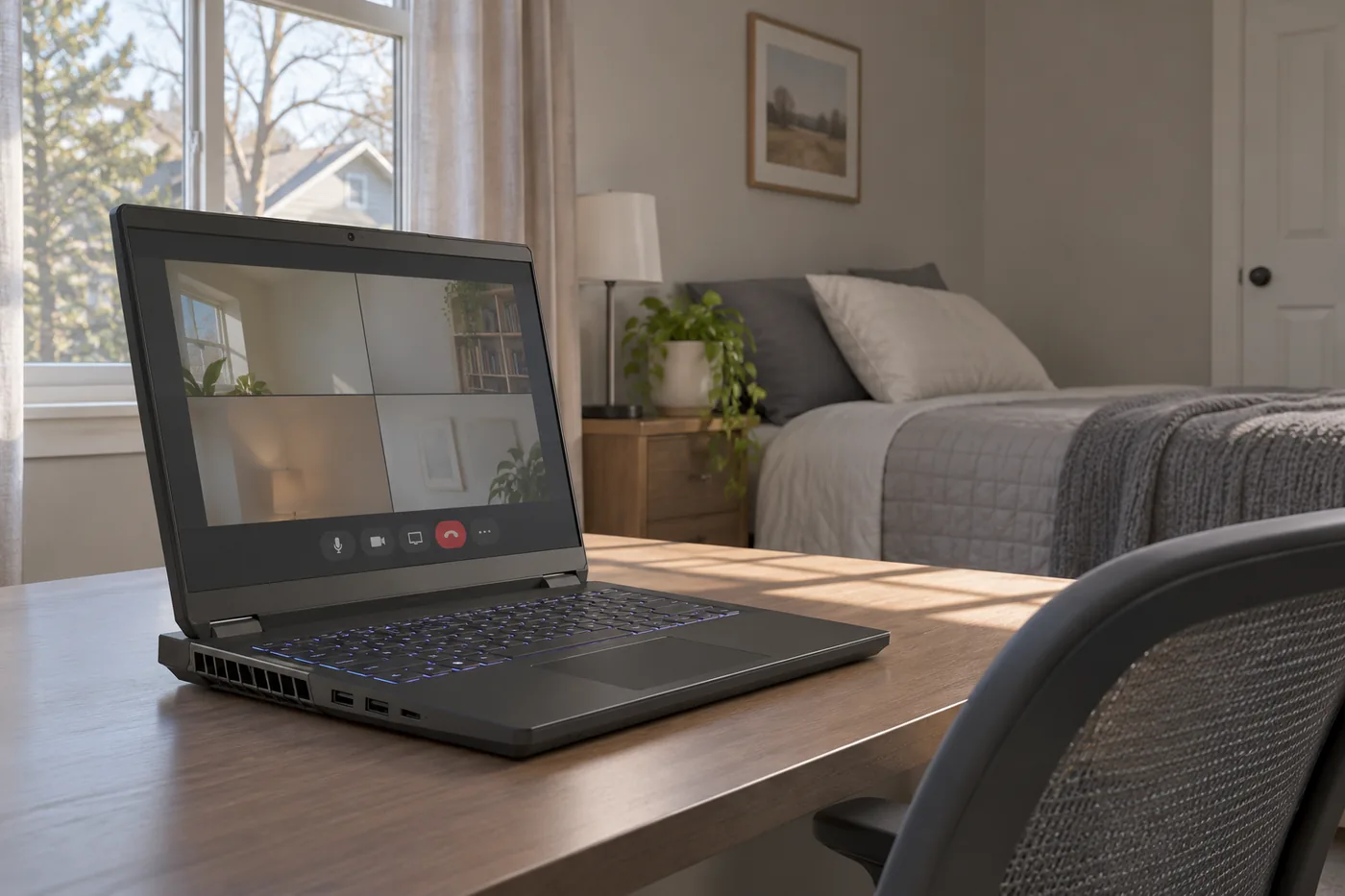 The bed is nearby, but the laptop has an uncovered, hard work surface.
Start with clear vents and a hard desktop, then try an everyday Windows power mode, reduce background work, and check official updates. There's no accessory to recommend yet: a cooling pad shouldn't be the opening move when the laptop's own airflow or workload may explain the noise.
How we chose
Reviewed Lenovo's airflow and workload guidance, Microsoft's power-management explanation, and Dell's adapter troubleshooting, retaining earlier checks where renewed access was blocked. The sequence follows airflow, unnecessary processing demand, and signs that require model-specific support rather than an accessory.
Part 1Give the vents a clear path
Look at the laptop before looking at a shopping page. Lenovo's support guidance identifies the sides, rear, and underside as places ventilation openings may appear, so the space under the machine deserves as much attention as the space behind its screen.
A laptop balanced on bedding may look perfectly ready for a meeting. But Lenovo recommends a flat, hard surface, because soft or uneven material can cover ventilation openings; that makes moving from the bed to the desk a useful change rather than just a tidier arrangement.
With the laptop powered off, follow its maker's cleaning directions for visible dust and lint. Lenovo's guidance includes compressed air for the vents, but that isn't an invitation to improvise with a sharp object or take the case apart without model-specific instructions.
Clear loose papers and anything resting against the openings, too. Then return to the same ordinary work task and notice whether the fan sounds different; changing placement without changing the task gives you a more useful comparison than rearranging everything at once.
An unobstructed desk removes an airflow obstacle; it does not promise a silent gaming laptop.
Part 2Let Windows favor the meeting, not the game
If placement hasn't helped enough, look at the power controls in Windows Settings. Microsoft's power-management documentation explains that supported devices can operate at the lowest feasible power level for the work being done, and that powering down unused devices can reduce noise.
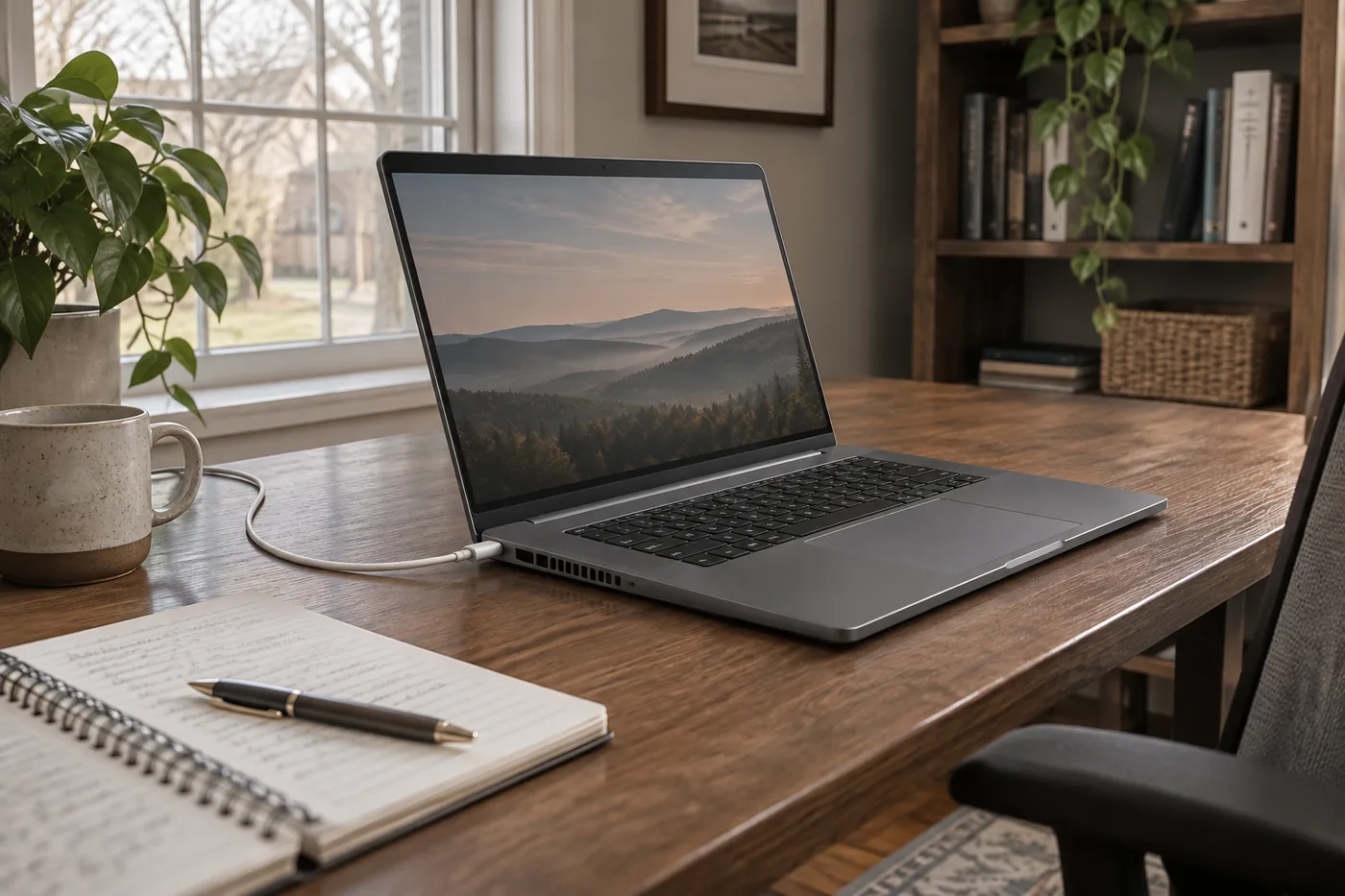
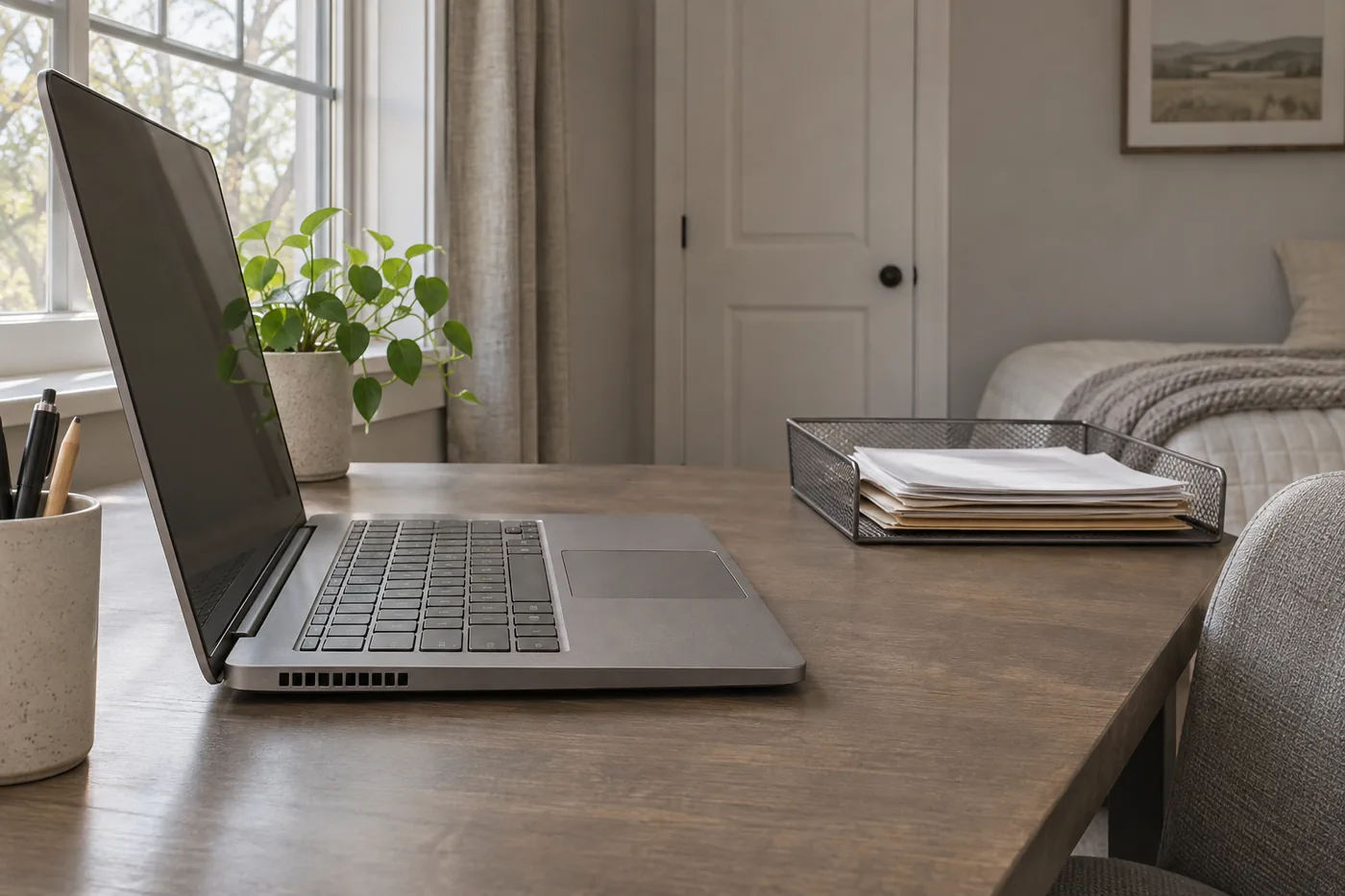 Open space around the laptop makes its side and rear ventilation easier to keep clear.
For office work, try an everyday power option rather than maximum performance, using the choices your laptop actually offers. The wording varies by machine, so a missing slider or differently named option doesn't mean you've overlooked a universal setting.
That change gives ordinary work a different power preference; it doesn't repair anything. If the call becomes choppy or an application stops behaving normally, restore the earlier choice rather than accepting an unusable meeting in exchange for a quieter desk.
Keep your expectations modest here. Microsoft's explanation supports power management as a route to quieter operation in suitable systems, not a guaranteed fan-speed change or a temperature target for your particular laptop.
Part 3Find the work hiding behind the call
Is the fan already racing before you join? That makes the work running behind the meeting worth checking, especially if a game launcher, video export, or busy browser is still open.
Lenovo recommends checking CPU activity in Task Manager and closing CPU-intensive applications. In the Processes view, the CPU column helps locate the busy app, so you can connect the sound to something the computer is doing rather than assuming the fan itself is faulty.
Start with an application you recognize and don't need for the call. Save its work and close it normally, then listen again with the meeting in the same state; that keeps the comparison focused on the application you just removed.
A high CPU percentage isn't permission to stop an unfamiliar process. Lenovo cautions that closing applications through Task Manager can cause unexpected issues, so leave security tools, system processes, and unfamiliar driver-related items alone while you establish what they are.
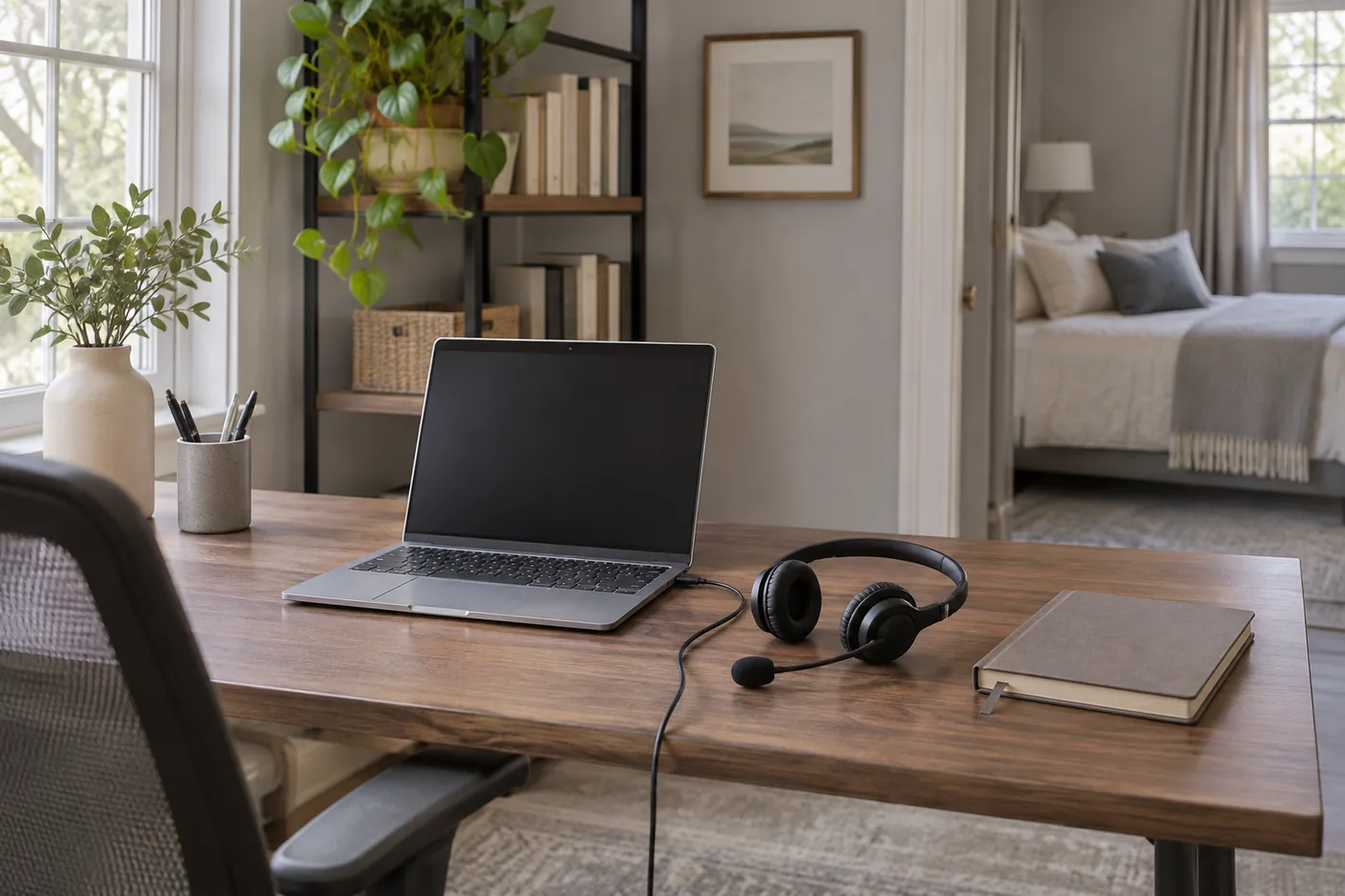 A prepared call setup makes it easier to close unrelated work without losing meeting controls.
Close unrelated work, not essential protection. For a meeting, that can mean exiting a known game launcher or pausing a nonessential sync job, while leaving the call software and security software available.
Part 4Use official updates before adding hardware
Once the surface, settings, and workload have had their turn, check Windows and the laptop maker's official update tools. Lenovo includes system updates in its troubleshooting sequence, so this belongs before assuming an extra fan under the computer is the missing piece.
Use the support page for the exact model and follow its restart instructions. An update may affect how the system manages devices, but an update is not a silence guarantee, and an unrelated download advertised as a fan fix isn't a substitute for the maker's guidance.
Charging trouble needs a different conversation. Dell's adapter troubleshooting is model-specific, so a loose or damaged power connection or a charging warning calls for the laptop maker's instructions, not a guessed replacement charger or cooling pad.
The same boundary applies when ordinary fan noise turns into grinding, repeated shutdowns, unusual heat, or a burning smell. Treat those as reasons to stop the desk experiment and seek manufacturer support; don't try to cover a warning with an accessory.
Part 5Make the next call the useful comparison
Would a stand help? Only if it suits the laptop and leaves its ventilation openings unobstructed; the official material reviewed doesn't establish a cooling-pad noise or temperature improvement that applies to every gaming laptop.
 A note about the task and power setting is more useful to support than a vague description of heat.
Before your next meeting, keep the camera and microphone setup familiar and change the most obvious cause first. Move the laptop off soft material, or close the known busy app you've identified, then listen during a pause rather than changing every setting together.
If the machine stays loud even when little is running on an open desk, collect the model name, whether it's plugged in, the applications open, and any warning or mechanical sound. That gives manufacturer support a concrete starting point, while today's quickest tweak remains wonderfully unglamorous: give the laptop its hard desk back.
Sources and method: This guide draws on Lenovo's ventilation, surface, workload, and update advice; Microsoft's power-management documentation; and Dell's adapter troubleshooting. Airflow, work demand, and model-specific support needs set the order. No purchase is required, and this article contains no buying links. Microsoft was checked November 24, 2026; Lenovo and Dell blocked renewed access, so their guidance retains the original November 7, 2026 source check. No temperature or sound measurements were made.
In one sentence
Give the laptop clear airflow, then check Windows power settings and background work before buying cooling hardware.
Frequently asked questions
Why is my laptop fan loud during video calls?
The meeting may share the computer with other demanding applications, or the laptop's ventilation may be obstructed. Check the surface and vents first, then inspect CPU activity in Task Manager and close recognized, unnecessary applications normally.
Can a Windows power setting make a gaming laptop quieter?
Microsoft explains that power management can reduce noise in supported systems. Try the everyday option available on your machine rather than maximum performance, but restore the previous setting if the call becomes unreliable; this cannot repair blocked vents or a failing fan.
Do I need a cooling pad for a hot laptop?
Not as the first troubleshooting step. The official sources reviewed provide no universal cooling-pad temperature or noise improvement; clear airflow, inspect background work, and check official updates before considering an accessory that fits the laptop's ventilation layout.
When should laptop fan noise go to manufacturer support?
Seek model-specific help if the noise persists with little work running on a clear hard surface, or if there are charging warnings, shutdowns, grinding, unusual heat, or a burning smell. Describe the exact behavior and power state rather than trying to compensate with extra cooling hardware.
Sources
- Lenovo Support: What to check if the PC seems warm · 2026-11-07
Original source check lists 5 checks: vents, surface, CPU-intensive applications, updates, and support. Renewed access on November 24, 2026 was blocked; the original check date is retained. No universal temperature or fan-noise figure was supplied.
- Microsoft Learn: Introduction to power management · 2026-11-24
Describes 3 benefits: energy conservation, improved startup and shutdown behavior, and quiet operation. Explains the lowest feasible device power level for the task; no model-specific temperature or noise reduction is stated.
- Dell Support: Troubleshoot AC adapter issues · 2026-11-07
Original source check used model-specific adapter troubleshooting, not a universal wattage, temperature, or sound figure. Renewed access on November 24, 2026 was blocked; the original check date is retained. No numerical product specification is used from this source.