The laptop fan settles into a low hum as you open a meeting invite at your apartment desk, but the calendar on the big screen is almost too small to read. Or perhaps the letters look fine and the pointer feels oddly slow. With a new laptop and a 4K monitor, check the connection before changing text size; a blank screen, soft lettering, and sluggish movement need different fixes.
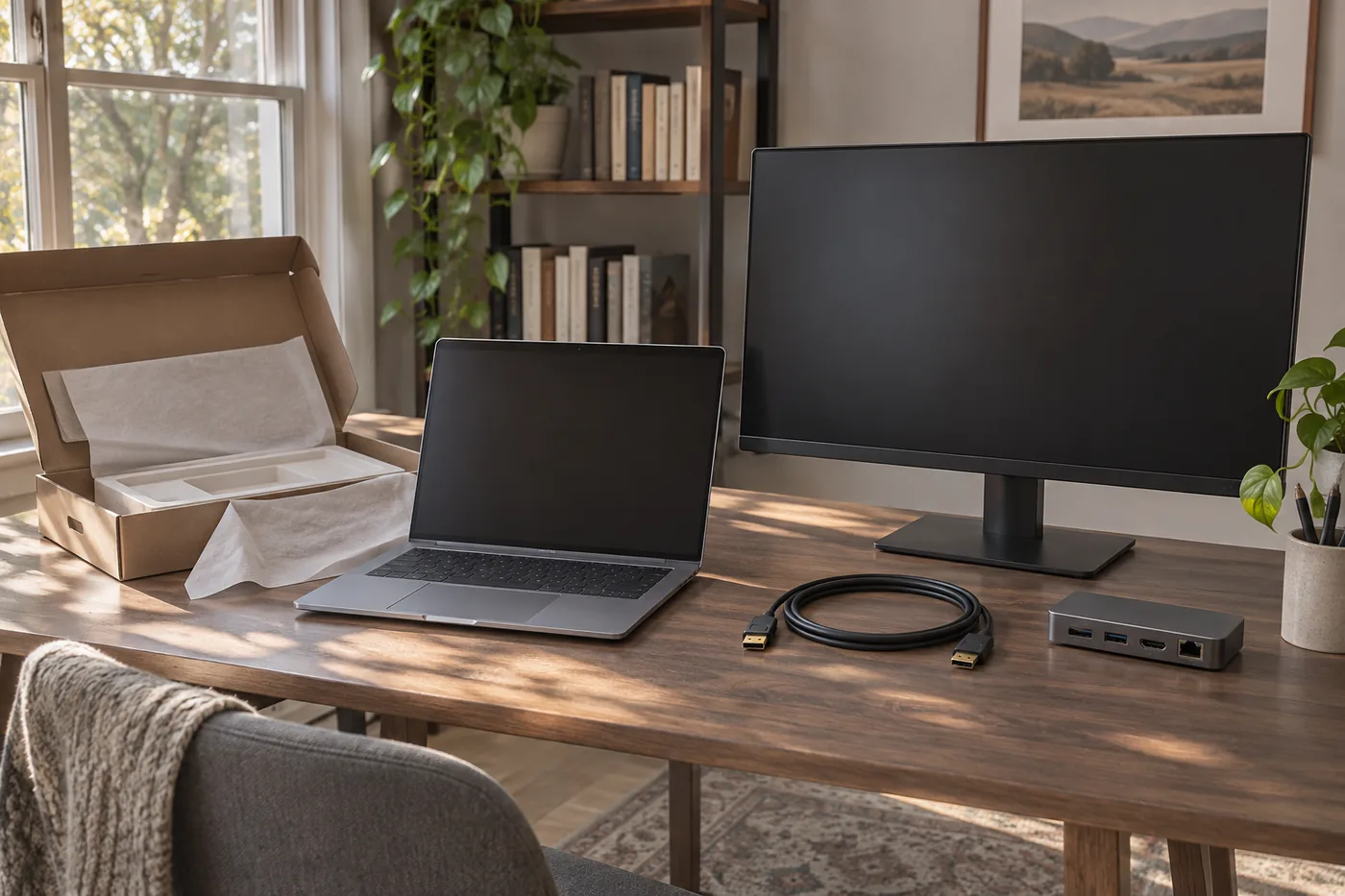 An awkward display setup does not automatically mean the new laptop needs another accessory.
I'd leave the shopping cart alone for now. Your existing cable or adapter may explain the problem, so start with what is already connected rather than choosing a replacement by its connector shape.
How we chose
Reviewed Apple and Microsoft display guidance, Apple's adapter specifications, and M3 MacBook Air display support. The troubleshooting order follows three checks: whether the video path works, whether text size preserves sharpness, and whether the complete connection supports the intended refresh rate.
Part 1Get a picture before chasing sharper text
A screen showing No Signal needs a connection check, not a font adjustment. Match the monitor's selected input to the socket carrying the video cable, then check that its power and video connections are seated at both ends.
If a dock sits between the laptop and monitor, try a direct connection using a video-capable laptop port and compatible cable or adapter. Apple explicitly recommends bypassing hubs and docks when an external display stays dark or cannot reach its expected resolution or refresh rate.
A picture that returns without the dock gives you somewhere useful to look. It implicates the removed connection path, but it does not identify which part failed, so avoid replacing the monitor on that evidence alone.
On a Mac, open System Settings > Displays and hold Option to reveal Detect Displays. Then click it, and allow the accessory connection if macOS asks; Apple notes that refusing permission can leave an external display dark.
Apple also suggests disconnecting and reconnecting the display, or putting the Mac to sleep and waking it. On Windows, look under Settings > System > Display > Multiple displays for Detect; if nothing appears, concentrate on the video connection rather than changing scaling.
A screen the laptop cannot detect will not become readable through a text-size adjustment.
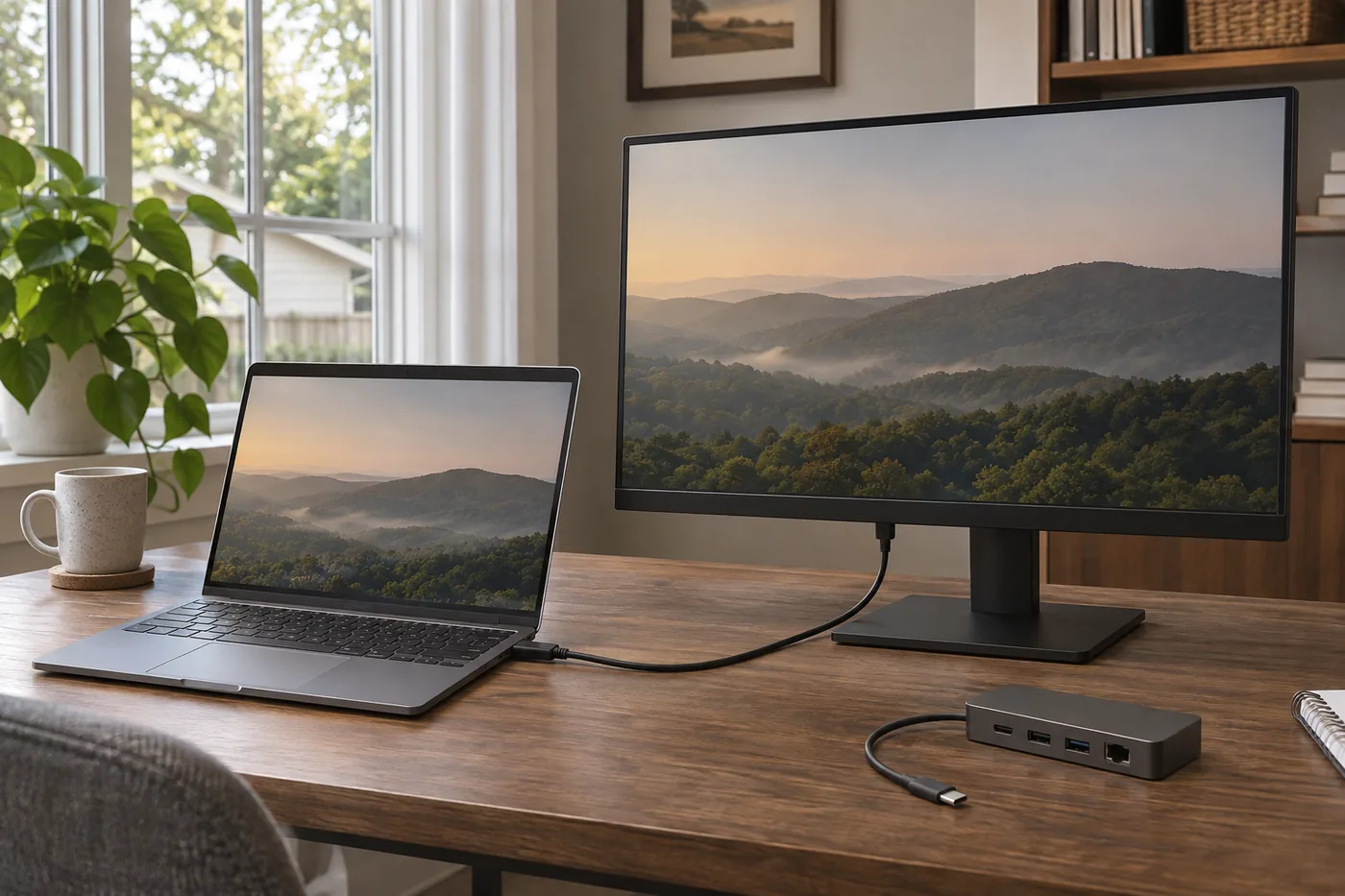 A direct connection helps separate a display problem from a dock or adapter problem.
Part 2Read the port specification, not just the shape
USB-C can look reassuringly familiar while telling you very little about video support. A charging connection is not proof of a display connection, so check the exact laptop port, cable, adapter, and monitor input together.
Apple says a Thunderbolt or USB-C adapter used for this connection must support DisplayPort Alt Mode, Thunderbolt 3, or Thunderbolt 4. But the desired resolution and refresh rate still need support throughout the path; the words supports 4K leave an important question unanswered.
For example, Apple's M3 MacBook Air specifications list an external display up to 6K at 60Hz alongside the active built-in screen. That describes this model's output capability, not what an unspecified dock will deliver, so use the exact model's documentation whether your laptop is a MacBook Air, Lenovo, or another brand.
Part 3Make text larger without making everything softer
Once the display works, ask yourself: are the letters tiny, or are their edges actually fuzzy? Small and blurry are different problems, so inspect a familiar document rather than changing several settings together.
On Windows, select the external monitor in Settings > System > Display before adjusting anything. Then start with the recommended Display resolution and Scale under Scale & layout, so the changes land on the big screen rather than the laptop panel.
Microsoft warns that text can lose sharpness below a monitor's native resolution. Use scaling for larger menus and text instead of lowering resolution solely to make everything bigger; if only a webpage is uncomfortable, adjust the browser zoom rather than the whole desktop.
On a Mac, select the external display in System Settings > Displays and start with Default. Then choose a larger-text resolution option if needed, checking your document after each change rather than assuming every mode will look equally good.
Apple notes that scaled resolutions can affect performance, and its troubleshooting guidance says native resolution may look sharper. So if a change makes lettering softer, return to the previous setting before trying another; larger text is useful only when you can read it comfortably.
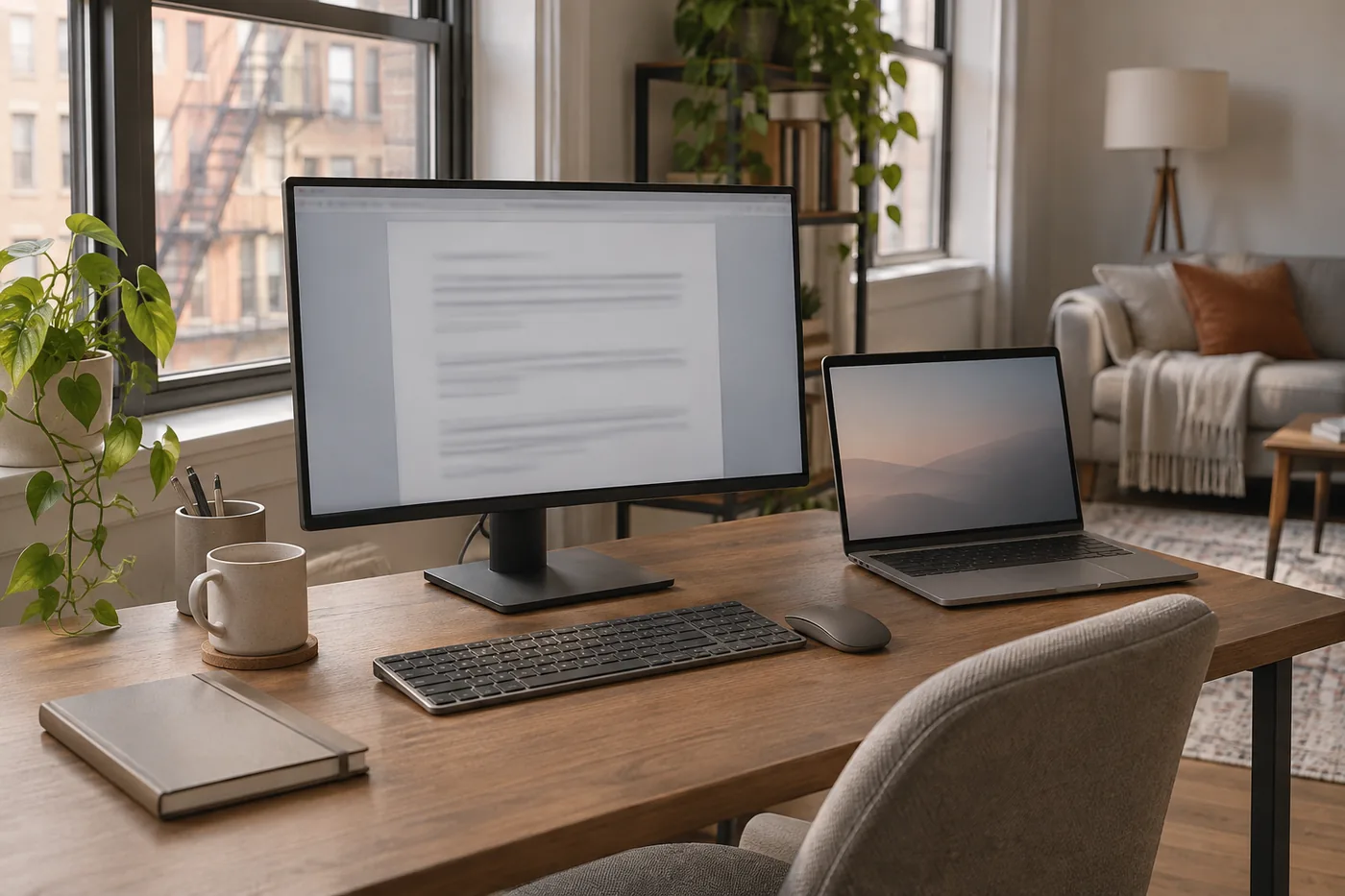 Check a familiar document after changing text size, rather than relying on the desktop wallpaper.
Part 4Find the limit behind a 30Hz connection
A crisp document can still feel awkward when scrolling or moving windows. That's when refresh rate deserves its own check, because making letters bigger does not change how often the display redraws.
Apple's USB-C Digital AV Multiport Adapter illustrates why the model number matters. The older A1621 supports 3840 × 2160 at 30Hz, while A2119 supports that resolution at 60Hz with Apple's listed compatible devices, including MacBook Air models introduced in 2020 or later.
Those are different capabilities behind a similar-looking accessory. Apple says the model number is near the adapter's ports, so read that marking before assuming a new laptop has removed an old limitation.
Swipe sideways to see the full table →
| What looks wrong | What to check next |
|---|---|
| No picture | Input selection and the direct video connection |
| Sharp but tiny text | Scaling or the Mac's larger-text option |
| Soft lettering | Native or recommended resolution |
| Clear picture, sluggish movement | Refresh rate and connection limits |
On Windows, select the monitor under Settings > System > Display > Advanced display and inspect Choose a refresh rate. On Mac, look for Refresh rate in Displays settings; Apple notes that controls vary with the display and Mac model.
Choose 60Hz only if the whole connection supports it at the intended resolution. If it is missing, recheck the input and adapter specifications and try without the dock; a documented 30Hz limit is not a scaling problem.
Part 5Finish with the work you actually need to see
Open your calendar and a document, then scroll and move a window. If you reconnect a dock, repeat that check, because a problem that returns only with the dock narrows the next support conversation.
If a Mac goes black immediately after a resolution change, Apple says to wait 15 seconds, then press Escape if it has not recovered. For persistent problems, give support the laptop and monitor models, connection path, and selected resolution and refresh rate; Microsoft also advises checking Windows Update when resolution changes unexpectedly.
Today's small tweak: select the external display before touching its settings, then adjust only the thing that looks wrong. That way, a tiny calendar gets larger without turning a working video connection into another puzzle.
Method: Apple and Microsoft support guidance, Apple adapter specifications, and M3 MacBook Air specifications informed the connection, text-size, and refresh-rate checks. Sources checked: November 24, 2026.
In one sentence
Establish a working video connection, then check text size, sharpness, and refresh rate separately.
Frequently asked questions
Why is text tiny on a Windows laptop's 4K monitor?
Select the external screen in Settings > System > Display, then start with its recommended resolution and Scale. Increase scaling for larger text instead of lowering resolution only to enlarge the desktop; Microsoft notes that below-native resolutions can make text less sharp.
Why does USB-C charge my laptop but not show a picture?
Charging alone does not confirm video support. Check the exact laptop port, cable, adapter, and monitor input specifications, then try a compatible direct connection with the matching monitor input selected.
Can an M3 MacBook Air run an external display at 60Hz?
Apple lists an external display up to 6K at 60Hz while the M3 MacBook Air's built-in display remains active. The adapter, cable, and monitor input must also support the resolution and refresh rate you select.
Why is my 4K monitor stuck at 30Hz?
Check the refresh-rate menu and each part of the video path. Apple's A1621 USB-C Digital AV Multiport Adapter, for example, supports 3840 × 2160 at 30Hz; a settings change cannot make that adapter deliver the same resolution at 60Hz.
What if my Mac screen goes black after changing resolution?
Apple advises waiting 15 seconds for automatic recovery, then pressing Escape if the picture has not returned. If it still does not revert, Apple's resolution guide provides safe-mode recovery steps.
Sources
- Apple: external display dark or low resolution · 2026-11-24
Supports bypassing a dock, Detect Displays, and accessory permission checks. Specifies DisplayPort Alt Mode, Thunderbolt 3, or Thunderbolt 4 compliance for applicable adapters; no universal display-resolution limit is given.
- Apple USB-C Digital AV Multiport Adapter specifications · 2026-11-24
A1621 supports 3840 × 2160 at 30Hz. A2119 supports 3840 × 2160 at 60Hz with listed compatible devices, including MacBook Air models introduced in 2020 or later. Model markings are near the ports.
- Apple M3 MacBook Air specifications · 2026-11-24
M3 model supports an external display up to 6K at 60Hz alongside the active built-in display. This model-specific capability does not establish a dock's output capability.
- Microsoft: screen resolution and layout in Windows · 2026-11-24
Windows 11 guidance says to select the intended display and use recommended Scale and Display resolution settings. Explains that below-native resolution can reduce text sharpness; gives no universal scaling percentage.
- Apple: change display resolution and recover a picture · 2026-11-24
Supports Default and larger-text resolution choices, with a scaled-resolution performance caveat. For a black screen after a resolution change, wait 15 seconds, then press Esc if automatic recovery fails.
- Apple: Displays settings · 2026-11-24
Explains the Refresh rate control and notes that available options vary by Mac and display. Does not give a universal 60Hz target; that numerical example comes from the separate adapter specifications.