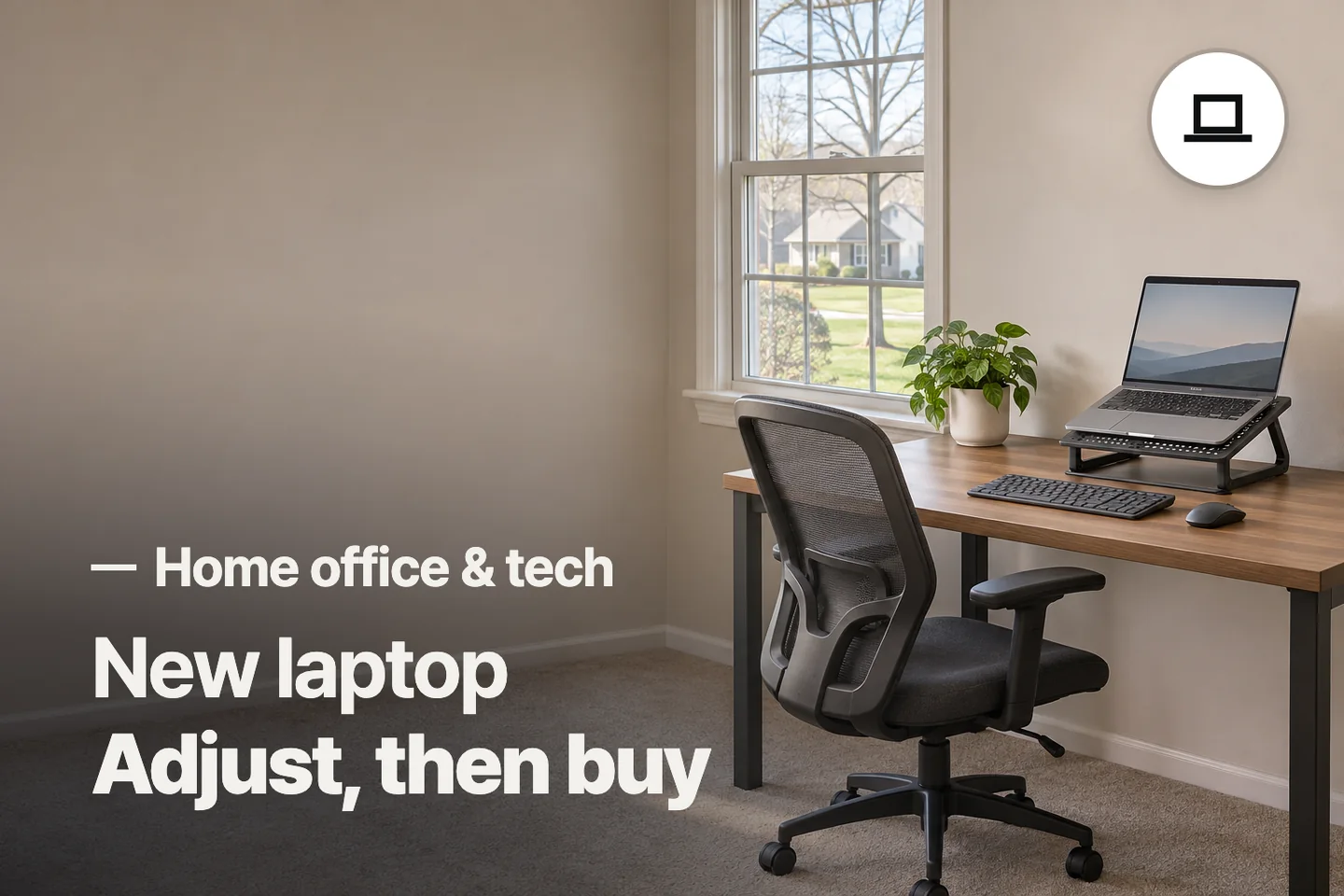
The fan of a new laptop whispers beneath a video call, but your shoulders are almost up by your headphones. In a spare-bedroom office, the old desk suddenly feels wrong because the new screen has you leaning toward it. That mismatch is worth checking before another delivery arrives.
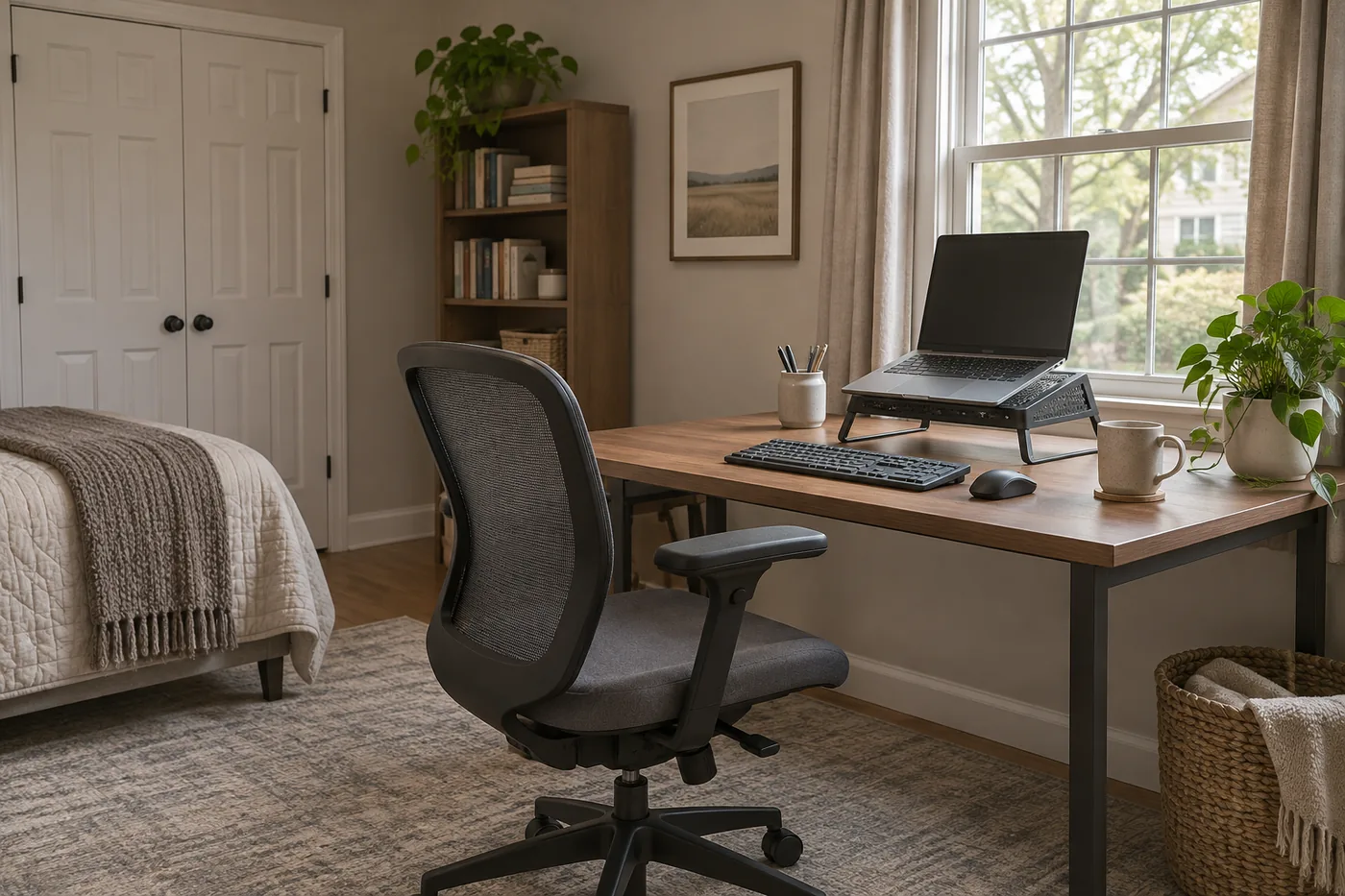 The laptop has changed; the desk and chair still need to work together.
I'd start with the chair you already own, not a replacement ergonomic office chair or standing desk. Work upward from supported feet to the backrest, then check your arms and screen; OSHA's workstation guidance connects those parts rather than treating each as a separate fix.
How we chose
OSHA workstation guidance from the prior source review and Steelcase's current Leap page informed this adjustment sequence. The checks focus on supported seating, relaxed arm reach and independent screen positioning; published controls are examples, not evidence that a particular chair fits every reader.
Part 1Set chair height around your feet and hands
Before: you raise the seat to reach the keyboard, and your heels leave the floor. So the first useful check isn't whether the chair looks straight on camera; it's whether your feet have somewhere to rest.
OSHA's neutral-position guidance calls for supported feet, knees roughly level with the hips, and elbows near the body at 90–120 degrees. That gives you a starting point for adjustment, not a pose to hold through every meeting.
Settle against the backrest, let your shoulders drop, and bring your hands to the keyboard. If the fixed desktop makes you raise the seat, OSHA suggests a footrest when desk height cannot change; the missing piece may be foot support, not another chair.
Now notice where the front edge meets your legs. OSHA's chair guidance says the seat should carry most of the thigh without touching behind the knee, so shorten the seat depth if that control exists.
Part 2Bring the backrest to you
Before: you move forward to escape a seat edge, then lose contact with the backrest. That leaves the lumbar pad doing very little, however substantial it looks in the product photo.
OSHA places lumbar support at the small of the back, so adjust its position before adding a cushion. If support is absent, the agency suggests a rolled towel or removable support as a temporary measure; a towel cannot shorten a seat that doesn't fit.
For an adjustment example, Steelcase lists height-adjustable lumbar support and a lower-back firmness dial on the Steelcase Leap. Those separate controls show why position and firmness deserve separate checks, but they don't establish that this chair will fit you.
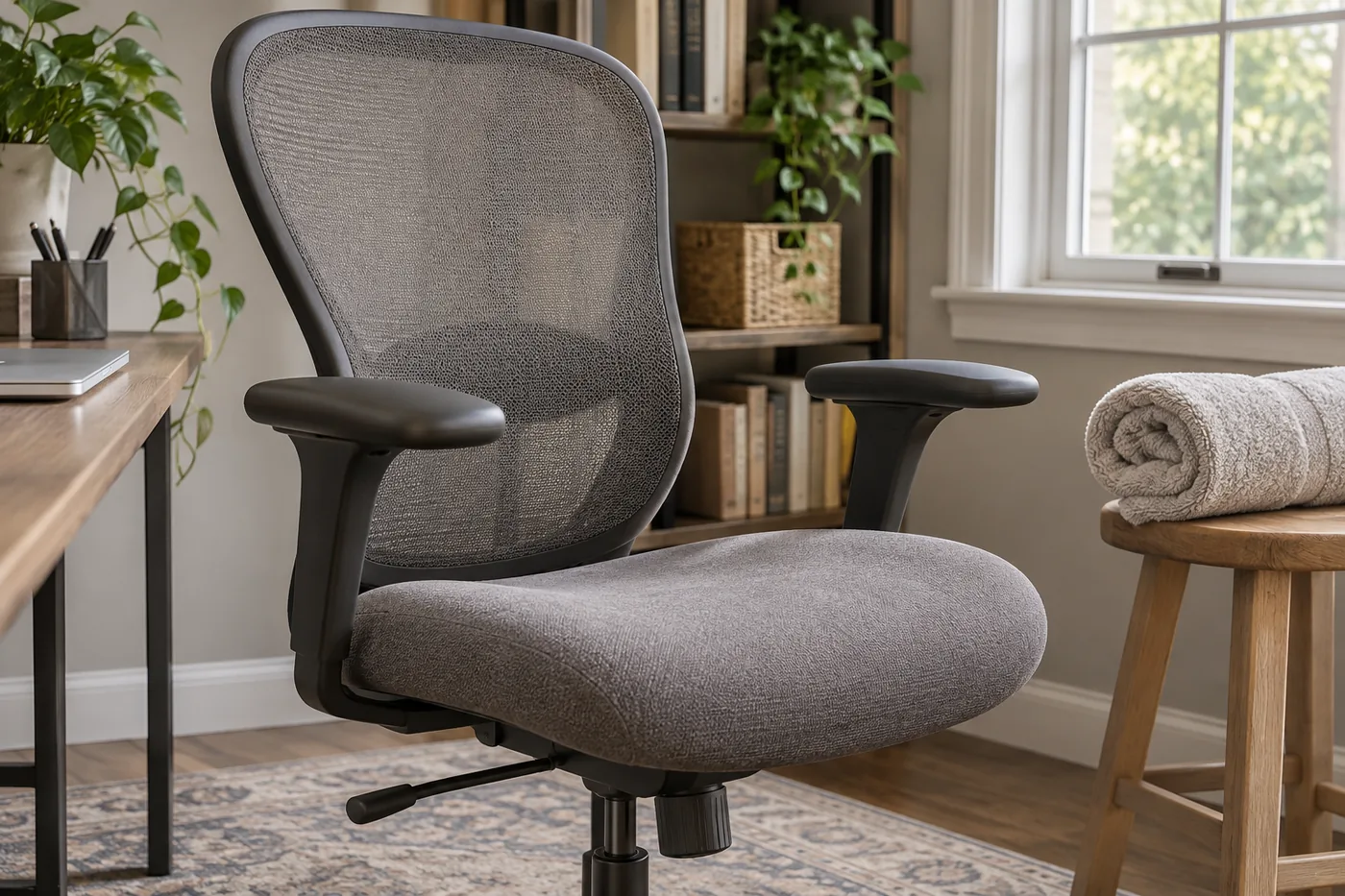 Check seat depth before expecting an added back support to change the fit.
Part 3Let the armrests meet relaxed shoulders
Before: the arm pads line up neatly with the desktop, but your shoulders rise to meet them. On a call, that can look like you're bracing for a question even when you're just trying to type.
OSHA's chair guidance favors armrests that leave shoulders relaxed and elbows near your sides. So let your upper arms settle first, then move the pads to your forearms rather than lifting yourself to the pads; desk-level armrests aren't the goal.
Does the chair stop at the desk before your hands reach the keyboard comfortably? That obstruction matters because OSHA notes that armrests can force a longer reach, so lower or reposition them using the chair's controls.
Steelcase describes the Leap's standard arms as four-dimensional: height, width, depth and pivot. That is useful adjustment range to compare if your current pads keep getting in the way, but first check whether their existing controls solve the problem.
Bring the mouse alongside the keyboard and move anything that pushes it farther away. This keeps the reach check about your ordinary work, not a carefully arranged desk that only fits when the notebook disappears.
Part 4Separate screen height from typing height
Before: you lift the laptop to improve the view, and its built-in keyboard rises with it. So your head gets a better position while your hands inherit the awkward one.
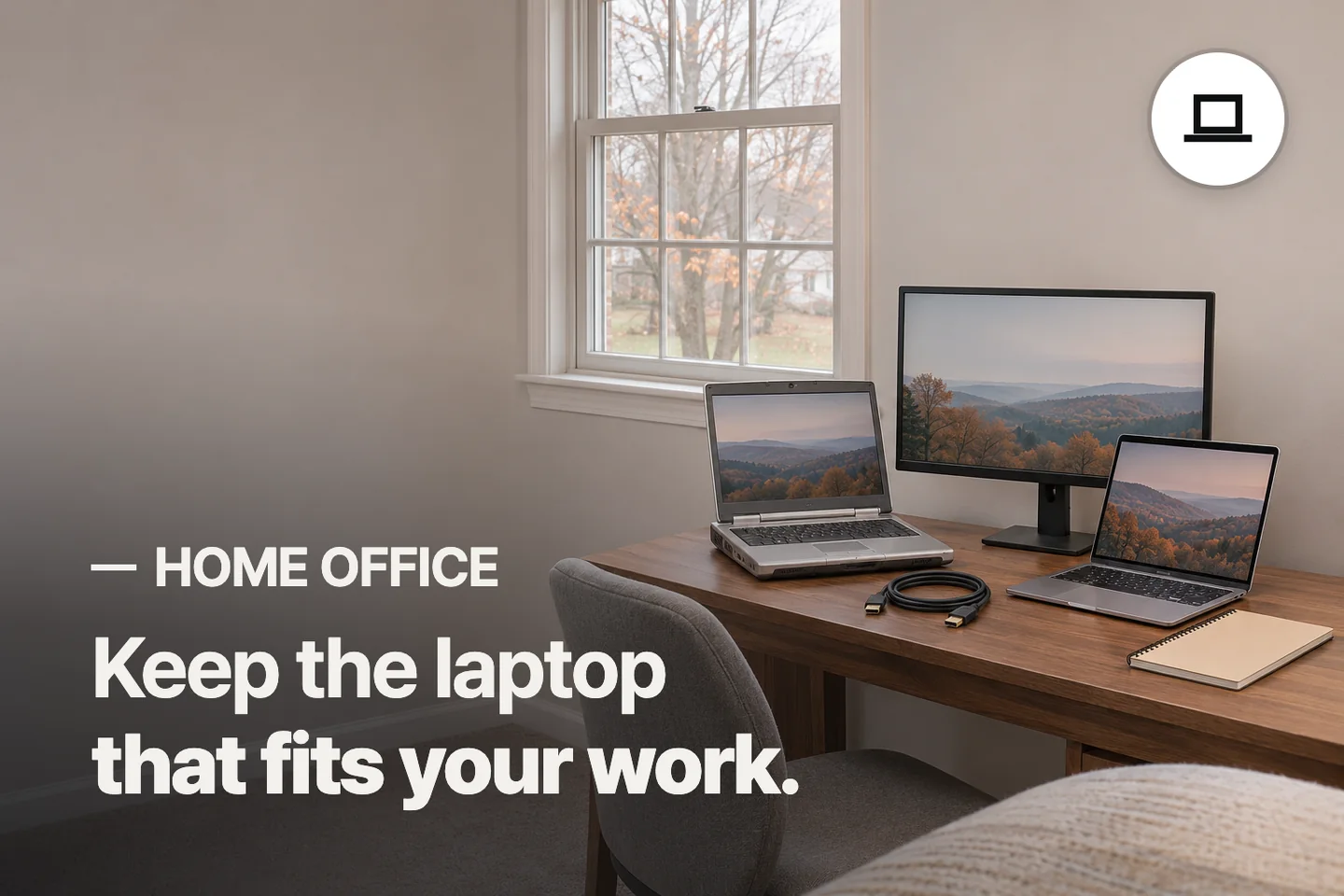
For a raised laptop, separate the keyboard and mouse from the screen using equipment you already have where possible. Or use an available external display while keeping the laptop keyboard at a workable height; either arrangement breaks the link between typing height and viewing height.
OSHA's monitor guidance places the display straight ahead, at least 20 inches away, with the top line at or below eye level. If that leaves you leaning in to read, enlarge the text rather than letting small lettering undo the chair adjustments.
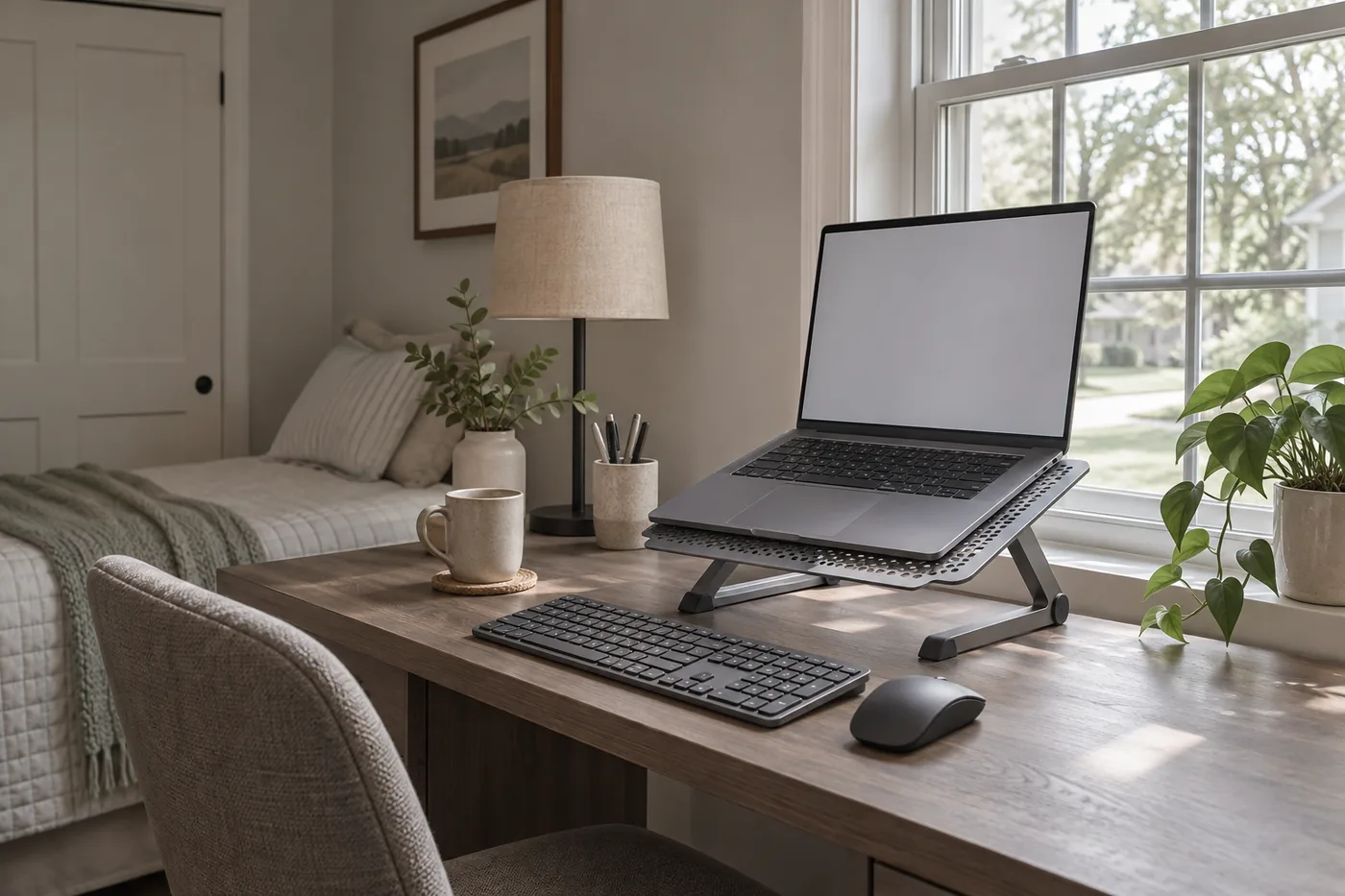 A separate keyboard lets the screen move without pulling your hands upward.
OSHA also recommends placing the screen perpendicular to a window. That gives you another adjustment when reflections make you twist away from the display, instead of asking the chair to compensate for glare.
Once the screen is comfortable to read, adjust the call framing around that position. Your camera view shouldn't require a different sitting position from the one that lets you work comfortably.
A clearer camera angle isn't a reason to put the keyboard out of reach.
Part 5Spend on the mismatch that remains
After those changes, the shopping question becomes narrower. Buy the missing adjustment, not a whole new setup just because the laptop is new.
Swipe sideways to see the full table →
| What still feels wrong | What to investigate next |
|---|---|
| The seat edge presses behind your knees even at its shortest setting | A chair with a seat depth that fits you |
| The backrest cannot meet your lower back comfortably | Seating with suitable backrest adjustment |
| The chair fits, but the keyboard stays too high | A lower working surface or suitable keyboard surface |
| The screen is low while typing height works | Separate screen positioning before furniture |
A standing desk may add another working position, but it doesn't make an unsuitable seat fit. OSHA advises frequent position changes, including periodically standing and walking, so movement still belongs in the workday even after the furniture fits better.
These adjustments aren't a diagnosis or a promise of pain relief. If discomfort continues or worsens, a qualified healthcare professional is a better next step than repeatedly replacing furniture.
For today's quick tweak, clear the space in front of the keyboard and bring it closer while keeping your shoulders relaxed. Then type an ordinary message; if reaching pulls you away from the backrest again, that gap is the next thing to address.
Method and sources: Supported seating, relaxed arm reach and separate screen positioning guided this check. OSHA guidance retains its November 9, 2026 source-review date because the pages could not be reopened; Steelcase's Leap features were checked November 24, 2026.
In one sentence
Fit the chair, keyboard and screen together before replacing furniture around a new laptop.
Frequently asked questions
Can an ergonomic office chair fix an awkward laptop setup?
Not by itself. Check seat fit and backrest contact, then keyboard reach and screen placement. OSHA's workstation guidance addresses those parts together; a chair change cannot independently separate a laptop's attached screen and keyboard.
Do I need a lumbar cushion?
Try the chair's existing lumbar position and firmness controls first. OSHA suggests a rolled towel or removable support when lumbar support is absent, but an added cushion does not correct a seat that presses behind your knees.
How high should a laptop screen sit?
OSHA recommends the top line at or below eye level, with the screen directly ahead and at least 20 inches away. If you raise the laptop, use a separate keyboard and mouse so the typing position does not rise with it.
Does a standing desk come before a replacement chair?
Follow the mismatch that remains after adjustment. A seat that cannot fit points toward seating, while a fixed surface that keeps the keyboard too high points toward working-surface height. A standing desk adds another position rather than replacing suitable seated support.
Sources
- OSHA workstation chair guidance · 2026-11-09
Prior review retained because reopening on November 24 was blocked. Original source recorded at least 15 degrees of backrest recline; qualitative guidance covers seat depth, lumbar contact, temporary towel support, footrests and armrest obstruction. The recline figure is not prescribed in this article.
- OSHA neutral working positions · 2026-11-09
Retained prior-review figure: elbows bent 90–120 degrees. Also supports feet being supported, knees about hip height and frequent position changes. Reopening on November 24 was blocked.
- OSHA monitor placement guidance · 2026-11-09
Retained prior-review figure: monitor at least 20 inches away. Also supports the top line at or below eye level, display directly ahead and perpendicular to a window. Reopening on November 24 was blocked.
- Steelcase Leap · 2026-11-24
Opened manufacturer page lists standard four-dimensional arms: height, width, depth and pivot. Also lists height-adjustable lumbar support and a lower-back firmness dial. Used only as an adjustment example, with no price or fit guarantee.