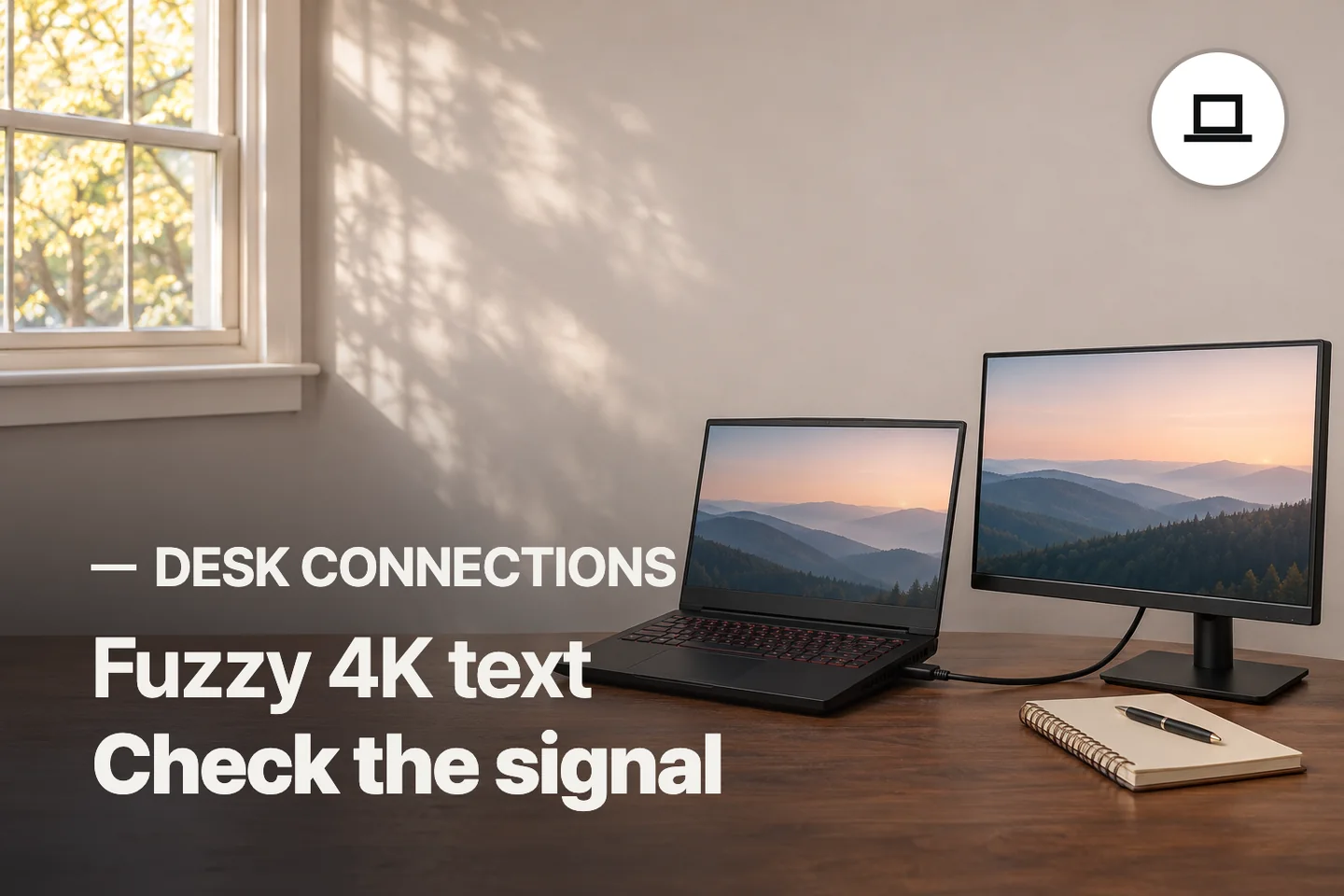
The laptop fan is humming through a work call, and the spreadsheet on your home-office monitor looks softer than the laptop screen. You expected a new Alienware laptop to make this desk easier to work at, not leave you squinting at column headings. Before another Black Friday purchase, give the connection a closer look.
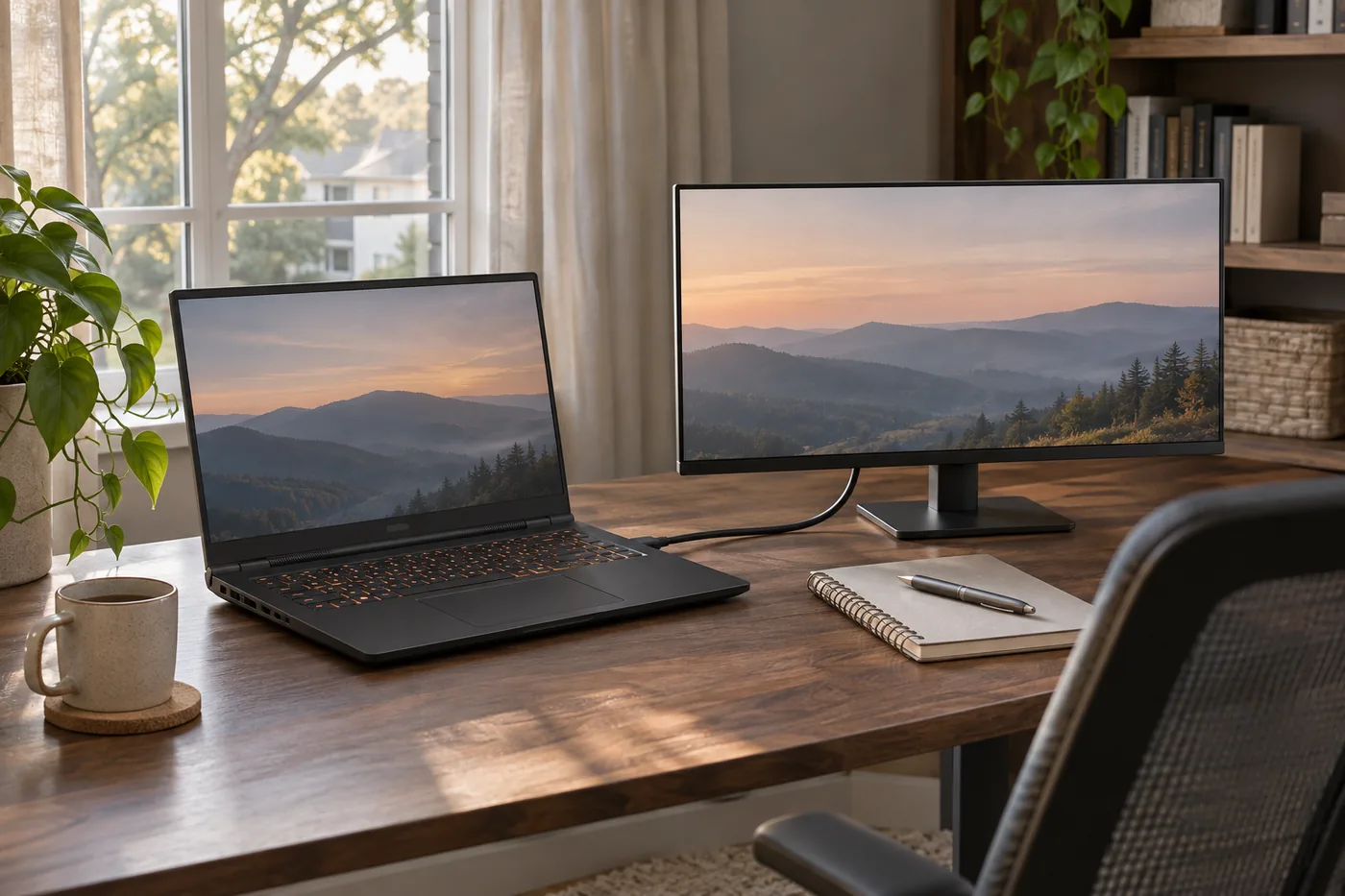 Keep the laptop screen available while checking the external display.
My starting point would be a direct video connection, followed by the monitor's native resolution and supported refresh rate; interface size comes afterward. The Alienware m16 R2 and Dell S2722QC below illustrate what to check, not what to buy. You may already have everything needed.
How we chose
Dell's laptop-port and monitor specifications were reviewed alongside Microsoft's Windows display guidance. The checks follow three priorities: a compatible video path, the monitor's supported resolution and refresh rate, and readable interface scaling. Hardware examples explain the process without recommending a purchase.
Part 1Match the port before blaming the laptop
A cable can fit without completing the connection you need. So find your exact laptop model in Dell Support, then compare its documented video outputs with the monitor's inputs rather than choosing by the Alienware name alone.
For the m16 R2, Dell's manual lists HDMI 2.1, USB 3.2 Gen 2 Type-C with DisplayPort, and Thunderbolt 4. Those details were checked on November 13, 2026; the Dell page could not be reopened for this update. They describe that model's ports, not every laptop carrying the same badge.
Dell's S2722QC specifications, also checked November 13, list HDMI and USB-C carrying DisplayPort, with a native resolution of 3840 × 2160 at 60 Hz. That makes a compatible direct HDMI or video-capable USB-C connection a sensible diagnostic starting point for this pairing. For a different monitor, use its own published inputs and display modes.
Before changing anything, notice which problem you actually have. Is the screen blank, is movement sluggish, or are stationary letters fuzzy? Those clues lead to different checks, so changing every picture setting at once only makes the result harder to interpret.
Part 2No signal: take the dock out of the path
Start at the monitor's own input menu and choose the socket your cable uses. Then reseat the cable at both ends and leave the laptop open so you can still reach Windows settings. A black external screen does not yet tell you which device is at fault.
Microsoft's external-monitor guidance recommends removing docks and adapters during troubleshooting because accessories can cause conflicts. So connect the monitor straight to a documented laptop video output, using a cable that supports that connection. This is a comparison, not a reason to throw away a working dock.
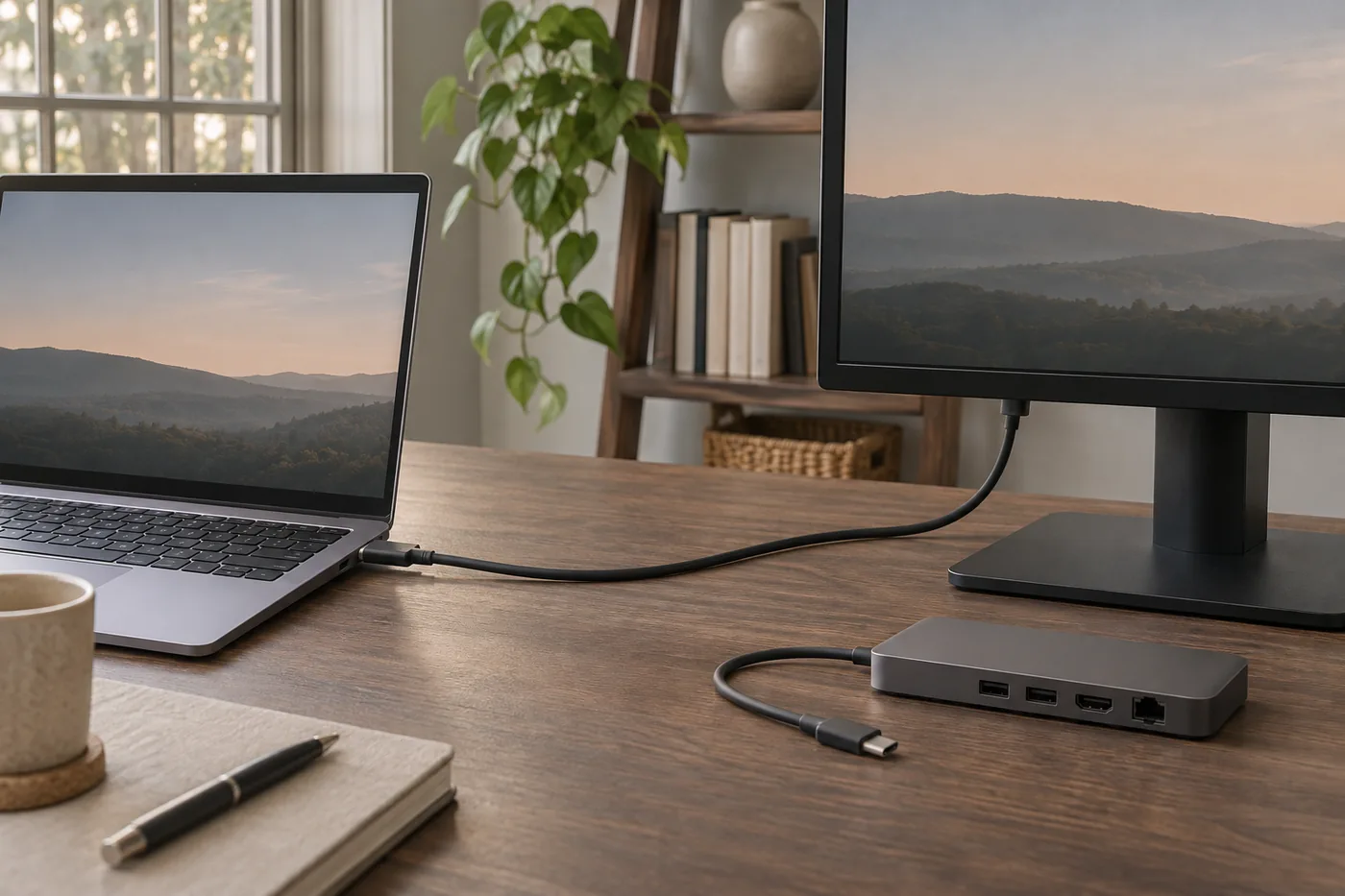 A direct connection removes the dock and adapter from this particular check.
Press Windows + P and select Extend, as Microsoft recommends when setting up an external monitor. If the monitor still does not appear, go to Settings > System > Display > Multiple displays > Detect. That asks Windows to look for the screen without changing unrelated graphics options.
Still nothing? Microsoft's next comparisons include a different cable, another video output, and the monitor connected to another computer. Use a compatible, known-working cable if one is available, and change only one thing between checks.
If another cable restores the picture, you have a useful lead before buying anything. But if the monitor works on another computer and stays blank through the laptop's documented direct outputs, take those results to Dell support. They narrow the problem without pretending to prove a failed graphics chip.
A successful direct connection narrows the fault to the removed connection path; it does not identify every faulty part within it.
Part 3Sluggish movement: read resolution and refresh together
When text looks crisp but moving a window feels uneven, open Settings > System > Display > Advanced display. Select the external monitor, because the laptop panel has its own settings and capabilities. Then read the resolution and refresh rate together.
For the S2722QC example, Dell's documented target is 3840 × 2160 at 60 Hz. If Windows offers that combination, select it rather than assuming the highest number in the menu must be better. Microsoft warns that a refresh rate marked with an asterisk changes the current resolution, so a smoother pointer could come with a softer desktop.
If the expected mode is missing, compare the direct cable with the dock or adapter connection. Check the accessory's specification for the exact resolution and refresh rate, not just a large “4K” claim on the listing. If direct connection restores the mode, investigate the accessory path before replacing the laptop.
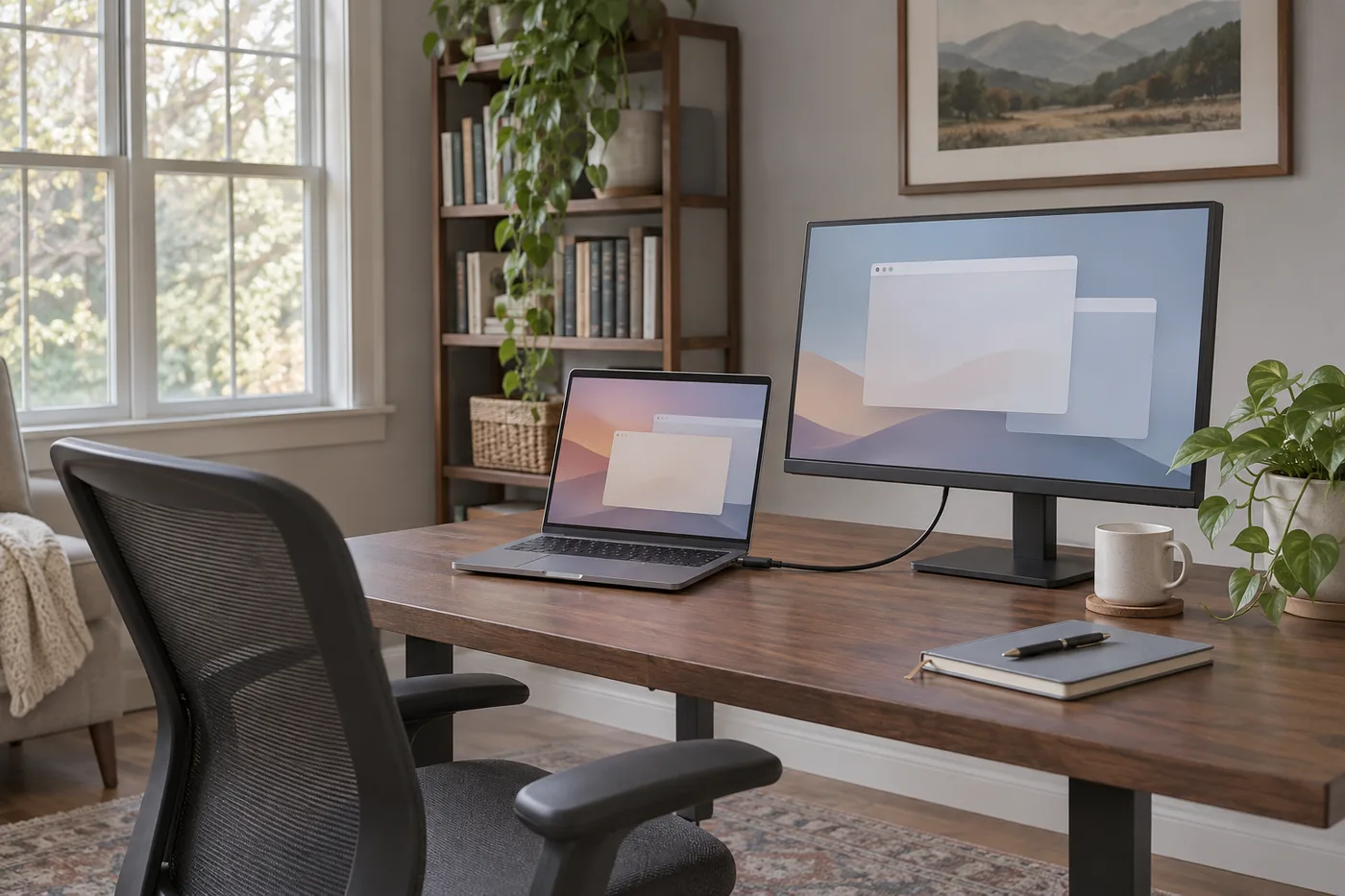 Select the external screen before adjusting its resolution, refresh rate, or scale.
A gaming laptop also cannot raise an office monitor's published refresh capability. That means a working desktop connection and a slow-running game need separate investigations; establish the supported desktop mode before changing game settings.
Part 4Soft text: keep the detail, enlarge the interface
Fuzzy letters can tempt you to lower resolution until everything looks bigger. But Microsoft notes that text can look less sharp below a monitor's native resolution, so begin with Display resolution: Recommended for the selected external screen. Compare that with the monitor maker's specification if the available choices look wrong.
Once resolution is right, adjust Scale to make text and apps comfortable, starting with Windows' Recommended option. This changes interface size without deliberately sending a lower-resolution desktop to the panel. Bigger menus and sharper letters are not competing goals.
If Windows menus look clear while a particular app remains soft, close and reopen that app on the external screen and check its zoom setting. That pattern deserves an app-specific check before another cable purchase. If resolution changes unexpectedly, Microsoft's guidance points to the graphics driver as a possible cause and recommends checking Windows Update.
Part 5Leave the sale tab alone for now
Write down the working port, cable route, resolution, and refresh rate before comparing replacements. That record makes it easier to buy a genuinely missing capability rather than another adapter with a reassuring label. No purchase is required to follow these checks, and this guide quotes no retail prices.
For today's quick tweak, select the external screen in Advanced display and compare its current mode with the monitor's published specification. Then correct the mismatch you actually find, leaving the other settings alone. A clearer next step, without another box arriving at the door.
Method and selection: Dell's model-specific port and monitor specifications supplied the hardware examples; Microsoft's guidance supplied the Windows checks. Microsoft pages were checked November 24, 2026; Dell specifications retain their November 13, 2026 check date because both pages returned access errors during this update.
In one sentence
Check a direct video connection and the monitor's supported display mode before buying replacement hardware.
Frequently asked questions
Can every Alienware laptop use the same USB-C monitor cable?
Do not choose by the brand name alone. Check the exact laptop's documented video outputs, the monitor's inputs, and whether the cable supports the required video connection. Dell lists USB-C with DisplayPort on the m16 R2, but that does not establish the ports on other models.
Why does my 4K monitor work directly but not through the dock?
That comparison points toward the dock, its upstream connection, or the cables and adapters removed from the path. Compare their documented resolution and refresh-rate support with the working direct mode, then change one component at a time.
Should I lower resolution to make text larger?
Start with the native or Recommended display resolution, then use Scale to enlarge text and apps. Microsoft notes that text can look less sharp at resolutions below the monitor's native setting.
Does a gaming laptop make a 60 Hz office monitor faster?
The monitor's supported modes still limit its desktop refresh rate. Dell specifies 3840 × 2160 at 60 Hz for the S2722QC example; a faster laptop does not raise that published capability.
What should I check when the external monitor says no signal?
Match the monitor input to the connected cable, reseat the connection, and test directly without the dock. Microsoft's guidance also recommends Windows + P with Extend, trying another cable or video output, and checking the monitor with another computer.
Sources
- Dell Alienware m16 R2: external ports and slots · 2026-11-13
Original source check documented HDMI 2.1, USB 3.2 Gen 2 Type-C with DisplayPort, and Thunderbolt 4 on the m16 R2. A reopening attempt on 2026-11-24 returned HTTP 403, so the original specification values and check date are retained. No regional pricing is used.
- Dell US S2722QC technical specifications · 2026-11-13
Original source check documented native 3840 × 2160 at 60 Hz, HDMI inputs, and USB-C carrying DisplayPort. A reopening attempt on 2026-11-24 returned HTTP 403; the original specification values and check date are retained. No price or current availability claim is used.
- Microsoft: change the display refresh rate · 2026-11-24
Advanced display instructions and the warning that asterisk-marked refresh rates change the current resolution. No additional numerical performance specification is taken.
- Microsoft: screen resolution and layout · 2026-11-24
Recommended resolution and scale, reduced text sharpness below native resolution, and checking Windows Update for unexpected resolution changes. No scaling percentage is prescribed.
- Microsoft: multiple-monitor setup · 2026-11-24
Multiple displays > Detect and Windows + P display modes, including Extend. No numerical specification is taken.
- Microsoft: external-monitor troubleshooting · 2026-11-24
External-monitor checks include removing accessories, choosing Extend, securing or replacing the cable, testing another system, and trying another video output. No numerical specification is taken.