Conclusion
The lower-priced TECKNET works for a right-handed receiver setup when its controls support your system. The Apple model is worth considering for supported Mac gestures, while M185 keeps basic pointing simple.
3 selected products
- No photoIf you want simple pointing with a receiver
Logitech M185 Wireless Mouse, Swift Grey
about $14.85 on Amazon.com (Oct 12, 2026) - No photoIf you want adjustable speed and right-hand controls
TECKNET 841270 2.4G Ergonomic Optical Mouse, Purple
about $8.99 on Amazon.com (Oct 12, 2026) - No photoIf you want gestures on a supported Mac
Apple Magic Mouse MXK53AM/A USB-C, White
Price varies; check Amazon
A wireless mouse can look like an easy upgrade until its receiver has nowhere to plug in or its buttons do not work the way you expect. Before choosing, check these three things, in order
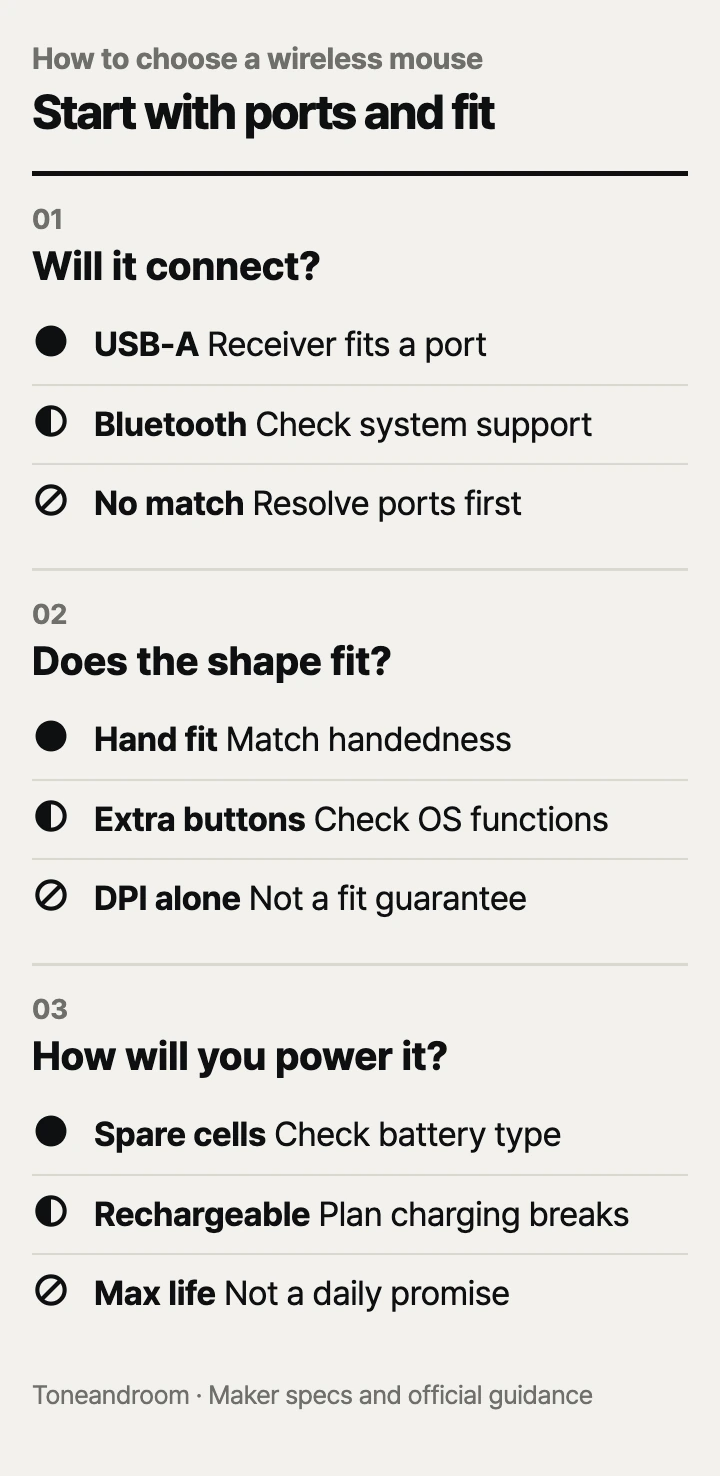
Will it connect to your actual computer?
Match the connection and operating system before comparing sensitivity or button counts.
Logitech's M185 uses an included USB receiver, not a Bluetooth connection. TECKNET's purple 2.4G Ergonomic Optical Mouse also uses a USB-A receiver. Apple's current USB-C Magic Mouse connects wirelessly through Bluetooth; its USB-C cable is for pairing and charging. A charging connector and a wireless connection are different parts of the setup, and confusing them can mean buying a mouse that needs an extra adapter.
Look at the laptop you will actually use, including the ports left after connecting a monitor, storage drive, or headset. A compact USB-A receiver is convenient on a desktop with an available port. On a USB-C-only laptop, it needs a compatible adapter or dock. Neither of these receiver mice becomes a Bluetooth mouse just because it is cordless.
Swipe sideways to see the full table →
| If your home desk has this setup | Our take | What to check |
|---|---|---|
| A Windows desktop with an open USB-A port | Worth it | Receiver storage and button needs |
| A USB-C-only laptop with no dock | Only some models | Bluetooth support or a suitable adapter |
| A supported Mac and frequent gesture use | It depends | Magic Mouse system requirements and shape |
| No usable port and no supported Bluetooth connection | Skip it | Resolve connection limits first |
Logitech lists Windows, macOS, ChromeOS, and Linux compatibility for the M185. TECKNET lists several systems for basic use, but explicitly says the side button is not compatible with Mac systems. That distinction matters if back and forward navigation is the main reason you are shopping. Do not pay for a button arrangement that loses its main function on your computer.
Apple lists macOS 15.1 or later, or iPadOS 18.1 or later, for this USB-C Magic Mouse. Check the exact model rather than borrowing requirements from an older Magic Mouse listing. Its Multi-Touch surface is aimed at gestures such as scrolling through documents and moving between pages; that is a more specific reason to buy it than simply wanting something without a cable.
- Identify USB-A versus USB-C on the computer and any dock.
- Check the current operating system, not just the computer brand.
- Confirm whether special buttons or gestures work on that system.
- Make a place to keep a removable receiver when traveling.
Does the shape suit your hand and desk?
Choose hand orientation and useful controls before treating a higher DPI ceiling as an upgrade.
Logitech describes the M185 as compact and ambidextrous, with a contoured shape and line-by-line scrolling. TECKNET's purple mouse is listed as right-handed, with rubber side grips and six buttons. Apple uses a low-profile Multi-Touch surface instead of a conventional wheel. Those differences affect how you hold and control the mouse more directly than a headline sensitivity number.
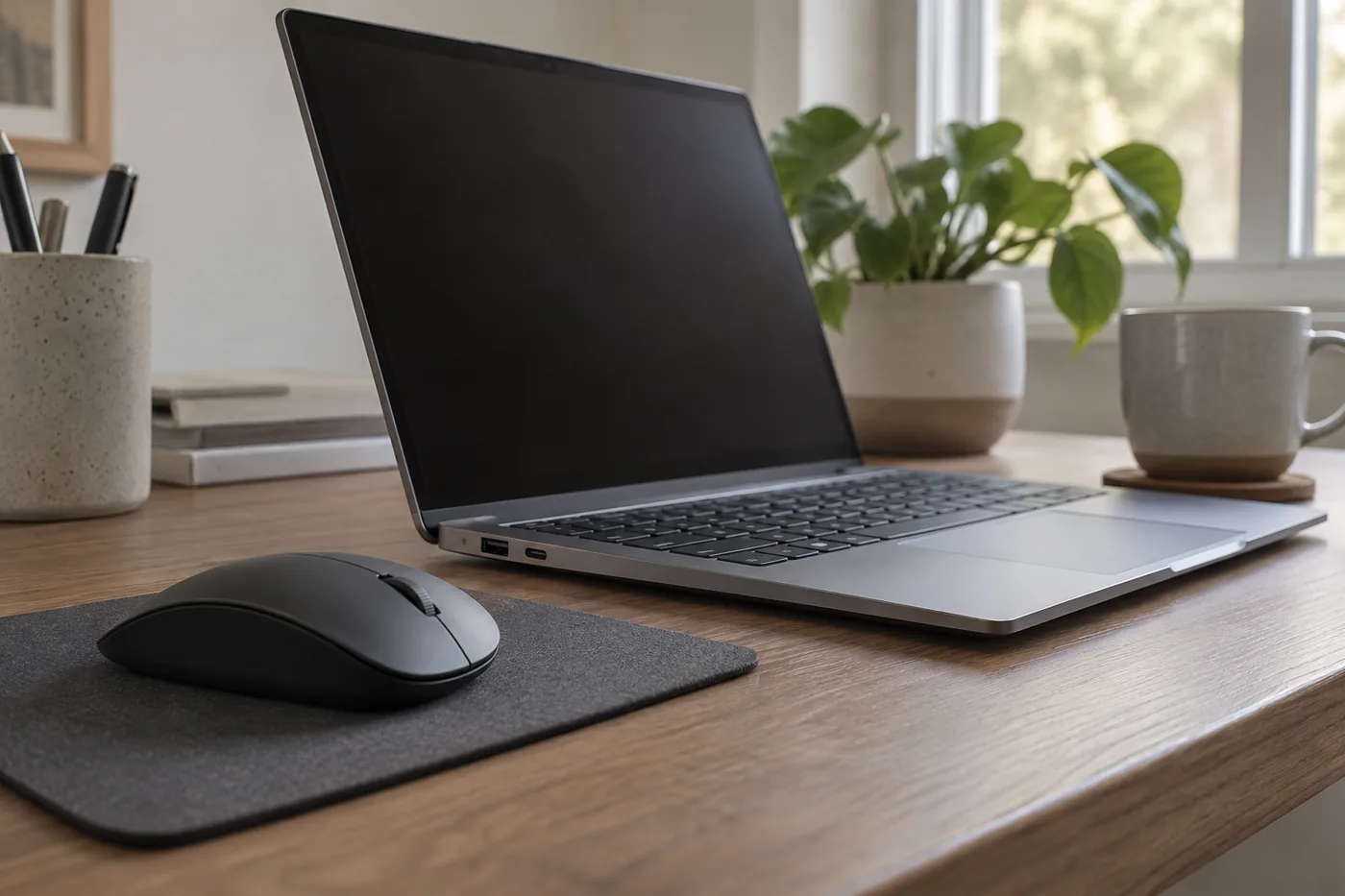 AI-generated illustration for explanation. Not a specific product.
TECKNET publishes five sensitivity settings from 800 to 2,600 DPI. That lets you adjust cursor movement on the mouse, but the largest number is not automatically the right setting for a document, spreadsheet, or small laptop screen. Start by considering whether your existing cursor speed is the problem. Extra settings do not solve an awkward shape, a cramped desk, or a missing side-button function.
For an easy size reference, TECKNET gives dimensions of 4.09 by 2.68 by 1.49 inches in its product description. Apple lists the USB-C Magic Mouse as 4.47 inches deep, 2.25 inches wide, and 0.85 inch high. Use those measurements to picture the object beside your current mouse, not to predict comfort from a drawing alone. The Apple model is notably flatter in its published dimensions; whether you prefer that is a matter of fit.
Handedness deserves its own check. The M185's symmetrical arrangement works as a starting point for either hand. The TECKNET listing specifically identifies right-hand orientation, so it is not a like-for-like replacement for someone using the left hand. Apple lists gesture support, but a gesture surface is not the same as having physical side controls under your thumb.
Also consider the desk surface. TECKNET explicitly excludes glass from its supported tracking surfaces. If your home workspace has a glass top, plan on a suitable mouse pad rather than assuming an optical sensor will work everywhere. None of these published specifications establishes a medical benefit, and a different shape should not be treated as a treatment for pain.
How will you keep it powered?
Pick a power routine you will maintain, whether that means spare batteries or charging breaks.
Logitech includes an AA battery with the M185 and advertises up to twelve months of battery life, with an on/off switch and sleep mode. TECKNET requires two AAA batteries that are not included and advertises up to twenty-four months. Apple includes a USB-C charging cable and describes the rechargeable Magic Mouse as lasting about a month or more between charges. These are maker claims, not a promise for your individual schedule.
A replaceable-battery mouse is straightforward for a desk drawer that already holds spares. It can be less convenient when you are traveling with no batteries on hand. The cheaper TECKNET package also has an immediate setup expense if you do not own the required AAA cells. Compare the complete setup, not only the mouse price.
A rechargeable mouse fits a routine where a cable is already accessible, but charging still needs attention. Apple's setup guidance says to use USB for charging and pairing, then unplug the device for wireless use. Plan a charging break rather than treating the included cable as a promise of normal wired pointing.
Long battery-life claims depend on usage and conditions. Do not convert a maximum quoted duration into guaranteed daily performance, or calculate a cost per month from it. The practical check is simpler: can you restore power easily before a meeting or a work session? Keep spare cells for the battery model, or make charging part of an existing desk routine.
- Check the battery type and whether batteries are included.
- Keep the correct spare cells where you use the mouse.
- Check the charging connector on the exact rechargeable model.
- Avoid choosing a device solely for the longest advertised duration.
How do the popular picks compare side by side?
M185 is the simple receiver option, TECKNET adds right-hand controls, and Magic Mouse serves supported Apple gesture workflows.
Swipe sideways to see the full table →
| Model | Connection | Controls and fit | Power | Price (Amazon.com, Oct 12, 2026) |
|---|---|---|---|---|
| Logitech M185, Swift Grey | USB-A nano receiver | Compact ambidextrous shape; scroll wheel | One included AA; up to 12 months claimed | about $14.85 |
| TECKNET 841270 2.4G Ergonomic Optical Mouse, Purple | USB-A receiver | Right-handed; six buttons; 800–2,600 DPI | Two AAA, not included; up to 24 months claimed | about $8.99 |
| Apple Magic Mouse MXK53AM/A, White | Bluetooth; USB-C for charging and pairing | Low-profile Multi-Touch surface | Rechargeable; about a month or more claimed | Price varies; check Amazon |
Prices are what Amazon.com showed on Oct 12, 2026 and change often.
Choose the Logitech when you want basic pointing without a complicated control layout. Choose the TECKNET when its extra settings and buttons work on your system and its right-hand shape fits. Choose the Apple model for supported gestures and a planned charging routine, not as a universal upgrade for every laptop.
A closer look at each product
If you want simple pointing with a receiver · Logitech M185 Wireless Mouse, Swift Grey
A compact ambidextrous mouse with an included USB-A nano receiver and AA battery. Logitech lists basic compatibility with Windows, macOS, ChromeOS, and Linux.
- Ambidextrous shape
- Receiver and AA battery included
- Line-by-line scroll wheel
- No Bluetooth connection
- Needs a USB-A port or compatible adapter
If you want adjustable speed and right-hand controls · TECKNET 841270 2.4G Ergonomic Optical Mouse, Purple
The receiver mouse has six buttons, rubber side grips, and five DPI settings from 800 to 2,600. Check the Mac side-button limitation before choosing it for navigation.
- Five DPI settings
- Rubber side grips
- Six-button layout
- Two AAA batteries not included
- Side button not compatible with Mac; glass tracking excluded
If you want gestures on a supported Mac · Apple Magic Mouse MXK53AM/A USB-C, White
Bluetooth and a Multi-Touch surface support a gesture-focused setup without a receiver. Apple lists macOS 15.1 or later and includes a USB-C charging cable.
- No receiver needed
- Multi-Touch scrolling and gestures
- Rechargeable with included USB-C cable
- Requires a supported Apple system
- Plan a pause for charging
In one sentence
A useful wireless mouse matches your computer connection, hand orientation, and power routine.
Logitech M185 Wireless Mouse, Swift Grey
View on AmazonTECKNET 841270 2.4G Ergonomic Optical Mouse, Purple
View on AmazonApple Magic Mouse MXK53AM/A USB-C, White
View on AmazonWhat to check
- ConnectionInspect the actual ports and operating system on your computer.
- Hand fitCompare handedness, dimensions, and control placement with your current mouse.
- PowerCheck included batteries or cable and decide how you will restore power at home.
- Connection and system support
- Hand fit and controls
- Battery or charging routine
Frequently asked questions
Do wireless mice need Bluetooth?
No: M185 and the TECKNET model use their own USB receivers instead. Magic Mouse uses Bluetooth, so match the connection to the computer you own.
Can I use a USB-A wireless mouse with a USB-C laptop?
You need a compatible USB-C adapter or dock that accepts its receiver. Confirm available ports and normal input-device support before buying.
Do TECKNET side buttons work on a Mac?
TECKNET states that the side button on this purple model is not compatible with Mac systems. Basic pointing compatibility does not mean all controls are supported.
Is a higher DPI better for office work?
A higher setting changes how far the cursor moves for a given movement; it does not prove better fit or control. Choose useful sensitivity settings alongside hand orientation, desk surface, and system support.
Sources
- Logitech official M185 · Oct 12, 2026
System compatibility, line-by-line scrolling, and up to twelve-month battery-life claim.
- Apple official USB-C Magic Mouse · Oct 12, 2026
4.47 by 2.25 by 0.85-inch dimensions, macOS 15.1 and iPadOS 18.1 requirements, charging and pairing cable, and rechargeable battery claim; Apple retail price is not substituted for Amazon pricing.
- Apple official Magic accessory setup · Oct 12, 2026
USB charging and pairing instructions followed by unplugging for wireless use.
Read next

Best Wireless Earbuds on Amazon (2026): Check Fit, Connections and Battery Care First
Best Power Bank on Amazon (2026): Check Connection, Output and Daily Fit First

Best Noise Cancelling Headphones on Amazon.com (2026): Check Fit, Connections, and Upkeep First
Best USB-C fast charger on Amazon.com (2026): cable ends, power, and placement first
Other topics

Best Cat Water Fountain on Amazon.com (2026): Check Placement, Capacity, and Cleaning First

Best Automatic Cat Feeder on Amazon (2026): Check Feeding Fit, Setup and Upkeep First

Best Self-Cleaning Litter Box on Amazon (2026): Check Cat Fit, Floor Space and Upkeep First